Widgets are the glass pieces on your hero: each one shows one specific thing, at the moment it's needed. Whether you're open now, your Google rating, where you are, your prices. Every widget is on every plan, Free included.
All widgets#
| Widget | What it shows |
|---|---|
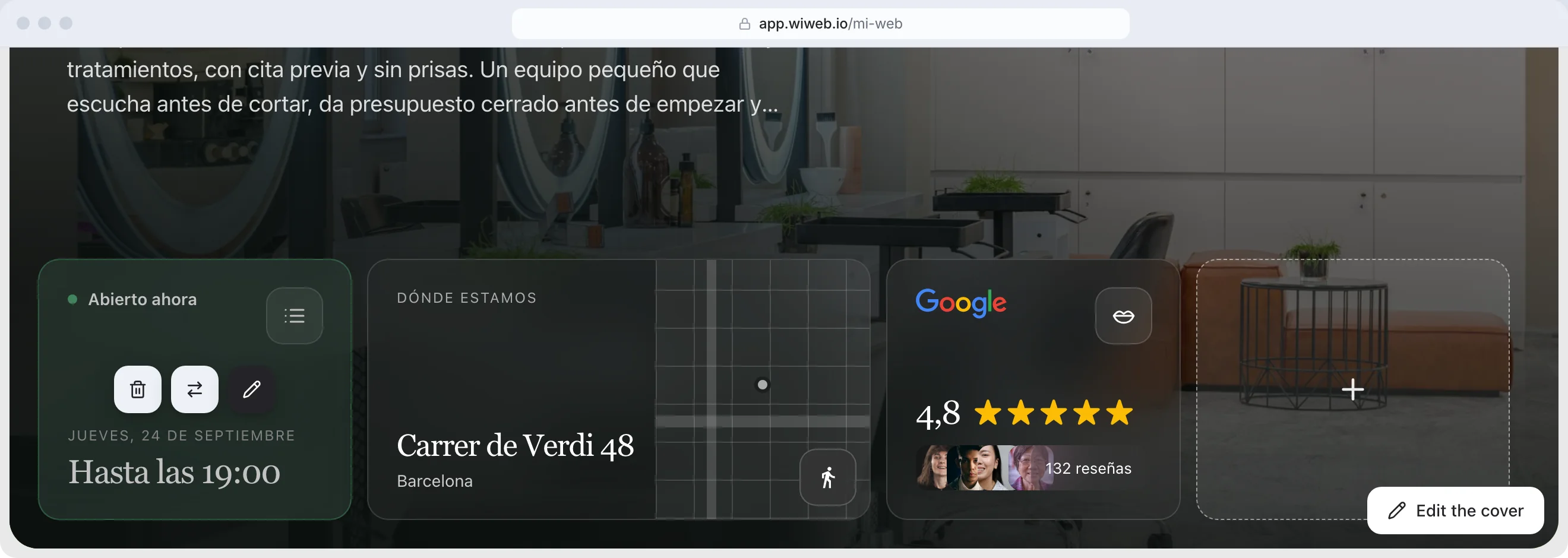
| Opening hours | Whether you're open now and what time you close today, with your opening hours. They're changed in Settings › Business; its pencil has the link |
| Google Business Profile | Your rating and number of reviews from your Google Business Profile, with a link to it. In its pencil, “Rating size”, from 70 to 200 %. Needs a verified profile |
| Where to find us | Your address with the map. Tapping it opens “directions” |
| Featured review | A real review from a customer, with its author. In its pencil, “Text size”, from 70 to 200 %. We never make one up |
| Services and prices | What you do and what it costs, from your Services page |
| FAQ | Your questions, from your FAQ page. Needs at least two answered |
| Social media | Your Instagram, your TikTok or your YouTube channel: your latest posts (or your channel and your featured video) or your follower (or subscriber) count, big. You choose the network and what it shows in its settings |
| Video | A YouTube video: paste the link |
| Photo | A photo. If you don't upload one, it uses the first one in your gallery |
| Link | A small link. Three fit in the same slot |
| Featured link | A big link, with its photo. For what you want people to tap |
| Text | A line of yours, big, on your brand colour. If you don't write one, your brand's line. In its pencil, too: a long “Subtext” —up to 600 characters; whatever doesn't fit the card ends in “…”—, the “Position” and “Text size” of each, “Background colour”, a list of up to six points under the line, an icon on top (from Lucide) and up to four small round faces —your clients, your team— |
| Heading | A heading on the page, with no card and in the text colour: a small label (its “Title”), the line big (“Your line”) and, if you like, a “Subtext” underneath, each with its own “Position” and “Text size”. To separate parts of your hero page. With no line, it doesn't appear on your site |
| Number | A big number with what it counts: “12 years”, “400+ clients”. Only your own, true numbers. In its pencil: “What it counts” keeps your line breaks (up to three lines); an optional “Link” —with one, the whole card leads there; another website opens in a new tab—; “Layout” (“Classic”, “Label on top”, “Centred” or “With a line”); an “Icon”: an up or down arrow, or a Lucide icon; and a small “Logo (optional)” before the label: whoever backs the figure |
| Profile | Your profile photo with a small text, a title and a subtitle. In its pencil: the photo “Round” or “Like the widget” —with the widgets' corners—, its “Photo size”, the “Alignment” left, centre or right, “Background” and “Border” to remove its glass or its outline, “Show the texts” —off, just the photo— and the size of the title and the subtitle from XS to XL. Whatever you leave empty doesn't show. Without a photo, the initial on your brand colour; when you add it, the title is your business name |
| Button | A button wherever you want it, with your text and your link: “Book now”, “Call us”, “Message us on WhatsApp”. In its pencil: the “Button text” (one line, 32 characters at most), the link —a website, a phone with tel:, an email with mailto: or one of your pages, like /contacto—, the “Style”, “Primary” (filled, like the button at the top) or “Secondary” (outlined), and, if you like, an icon before the text. It's a button, not a card: it doesn't carry the widgets' glass background. Add two, one under the other or side by side, for a primary and a secondary |
| Offer | An offer with an end date: “Colour + cut, $35 (was $45), until 31 October”. In its pencil: “What you're offering”, the “Price” and the “Old price” (shown crossed out, and only if there's a price), “Until (inclusive)” and, if you like, a link: the button (“Book”, or the text you write) sits bottom right, next to the price; if the price is long and both don't fit, the button becomes a basket. With “Background colour” you paint it any colour you like: the text and the button turn white or black, whichever reads better. It shows all through that last day and disappears from your site on its own the day after, with no need to publish again; in the preview it stays, greyed out, marked “Expired”, so you can change the date or remove it. It's what Google no longer lets you put on your Business Profile (promotions with dates and prices): on your site, you can. It shows the offer and leads to booking or calling; nothing is charged through your site |
| Countdown | The time left until a date and time —an opening, an event, the end of a promotion— or the time since one (“open since 2019”): the days large on top (“24 days”) and the time underneath. With less than a day, a single big line. In its pencil: the “Title”, “Date and time” (Madrid time), “Counts” —“Time left” or “Time since”— and “Time detail”: “Hours” (“22h”), “Minutes” (“22h:31m”, with the colons blinking) or “Seconds” (“22h:31m:07s”, ticking every second). A countdown of time left disappears from your site on its own when it reaches zero |
| Latest posts | The latest three posts on your blog, with their dates, and the “See the blog” button. It updates by itself every time you publish one. It needs published posts, and the blog is on Grow: without them, it doesn't show |
| Logos | The logos of your clients or of where you've worked, in the text colour so none stands out. In its pencil, eight boxes laid out as they appear on your site —two columns of four—: tap an empty one to upload a logo there (PNG with a transparent background), drag one onto another box to swap them and tap one to give it a “Link (optional)” or remove it. Underneath, the “Position” of the logos in the card and the “Logo size”: “Small”, “Medium” or “Large”; and, as on Profile, “Background” and “Border”. With no logo, it doesn't appear on your site |
Up to nine widgets fit on your hero. On a personal page, Opening hours, Google Business Profile and Featured review don't appear.
What about bookings? There's no booking widget inside your site: your booking system (Booksy, Treatwell, whichever you use) is linked from the main button, with “Book an appointment”, with a Button widget anywhere on your cover, or with a Link or Featured link widget.
Add, reorder and remove#
You edit widgets on your own site, in the My page preview, with Home selected in “Page”. It doesn't matter which tab you're on: WI, SEO or Style.
- Add: move your mouse over the end of the row of widgets —on the Grid template, over an empty cell— and a block with a “+” appears. Press it: the library opens, “Add a widget”, with every widget as a card, each with a sample of how it looks with your site's colours, font and glass. Press a card, or its “+”, and the widget goes there. The Grow ones carry the “Grow” button; the ones you already have, a tick; and the ones you can't add yet come last, greyed out: move over one and it tells you what's missing. When you add one, its settings open so you can fill it in, and while the preview catches up it darkens with a note that it's loading.
- Swap one for another: move over the widget and press “Swap”, the button with the two arrows, between the bin and the pencil. The same library opens, “Swap for another widget”, and the one you choose takes its place. On Grid it keeps its size if the new one allows it.
- Reorder: drag them on your site; on a phone, keep your finger on one to pick it up (a plain swipe scrolls the page). On Grid you can also change their size by pulling their bottom-right corner, and move them with the arrow keys.
- Edit: the pencil opens its settings. The first field is its “Title” (empty, the widget has no title); below it, its own things —the network and what it shows, the number, the link, the video…— and its button text.
- Remove: the bin.
When we create your site we choose the widgets ourselves from what we know about your business. As soon as you touch the row, it becomes yours and we stop changing it. If you want us to choose again, open the library with the “+” and press “Reset”, at the top right.
A widget that's still missing its data shows as a grey slot, only in the editor, with its bin and pencil. Widget changes show straight away in the preview. What you change in a widget's settings is saved when you close them; the rest —moving or removing them— with “Update”. For them to appear on your site, publish.
Automatic selection#
When we create your site we choose the widgets ourselves from what we know about your business. As soon as you touch the row, it becomes yours and we stop changing it: from then on you change it yourself, in the preview.
The glass#
How they all look at once is changed in Style › “Widget style”:
- The background — “Glass” (the usual one, with your site's colours), “Colour”, a gradient (linear, radial or conic) or “Colour mesh”. The text on top adjusts itself to stay readable.
- “Liquid glass” — a rim of light and a soft shine, iPhone-style, with its “Shine”.
- “Shadow”, and how much, and “Border”.
- “Opacity” — how much of the photo shows through the widget — and “Blur” — how much the photo behind is blurred.
- “Labels as pills” — each widget's label (“Services”, “Experience”) is wrapped, with the widgets' corners; with “Pill colour”, in the colour you like.
- “Thick stroke” — an ink outline and a hard shadow on widgets and buttons, like a sticker.
- “Stickers” — four stickers in the corners of the hero, behind everything: they never cover a link. On the Hero template.
- “Corners” — from square to very round. It also affects buttons and photos.
- “Space between widgets” — from 0 to 16 px.
The Hero template also has a “Top right” slot for a single widget on its own.
Connect your social media#
The YouTube widgets are filled in with your channel's username, which you add in Settings › Social media. The TikTok one fills itself in when you connect your account in Settings › Social media. The Instagram one can be filled in by hand; connecting it directly is being tested and isn't open to everyone yet.
Request a widget#
Missing one? At the very bottom of the library —the window the “+” and “Swap” open—, under “Missing a widget?”, press “Request a widget”: give it a name and tell us what it should show. We read every idea, and the most requested ones are what we build next.