To create your page you first need an account. It's free, it doesn't ask for a card and it takes a minute: with your email and a code we send you, or with your Google account. You don't need to make up a password.
Sign up#
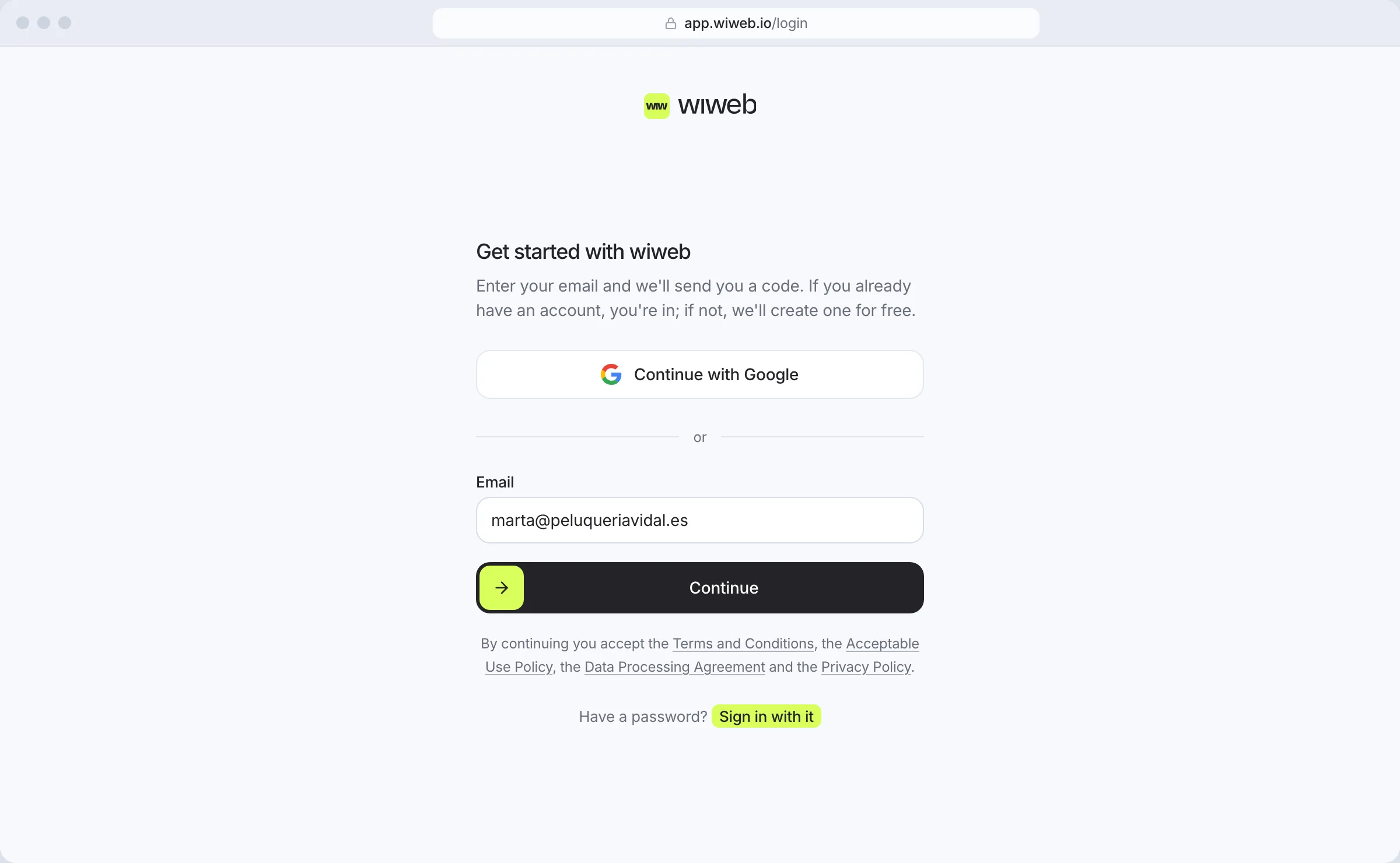
- Go to app.wiweb.io or press the button at the top right of wiweb.io. The “Get started with wiweb” screen opens. It's the same screen for signing up and for signing back in.
- Choose how:
- With Google: press “Continue with Google” and choose your account. You don't need to confirm your email: you go straight on to creating your page.
- With your email: type your “Email” and press “Continue”. We send you a 6-digit code (explained just below).
If you come from the Grow card on the pricing page (“Choose Grow”), under the heading you'll see the plan you chose and its price, monthly or yearly depending on what you picked (“You chose Grow · $90/year. You pay at the end, just before we build your site.”). The account is created the same way, with no card: payment is asked for in the setup wizard, once you've answered everything and before we build your site, and you can change your mind there and start for free. It's explained in Create your page.
If you come from the United States, wiweb.io shows you prices in dollars ($9 a month or $90 a year) and, if you sign up from there, your account stays in dollars: what you see is what you're charged.
If you mistype your email (for example “gmial.com”), we point it out underneath with a “Did you mean…?” so you can fix it with one tap.
By continuing you accept the Terms and Conditions, the Acceptable Use Policy, the Data Processing Agreement and the Privacy Policy. We say so on the same screen, under the button.
The code in the email#
When you press “Continue” we send you a 6-digit code. It's right in the email's subject line (“123456 is your wiweb code”) and it expires in an hour. Meanwhile you'll see the “Check your email” screen.
- Type the code into “6-digit code”, on the same screen. You're in as soon as you type the sixth digit; if not, press “Sign in”. If you use Gmail, Outlook, Yahoo or iCloud, the screen gives you a button to open your inbox directly.
- That's it. If it's your first time, your account is created and you go on to create your page, with the “Email verified” notice. If you already had an account, you land in your dashboard.
It doesn't matter where you open the email: if you start on your computer and read it on your phone, you type the code on your computer and carry on there.
The email also has a button to sign in with one click, for when you open it on the same device. If you press it in another tab of the same browser, the tab you were on signs you in by itself.
Not arriving? Look in spam and, if you use Gmail, in the Promotions tab. With an iCloud address the screen warns you that it often lands in Junk: mark it as “Not Junk” so the next ones arrive properly. If it isn't there, press “It hasn't arrived — resend” (you can do this every 60 seconds). If you typed your email wrong, “Use a different email” lets you change it.
If you see “That code isn't right or has expired”, check the latest email you've received or ask for a new one. The link in the email, for its part, can only be used once and it expires: if you press it and see “That link no longer works”, type your email again and we'll send you a new code.
Sign in again#
To get back into your account, go to app.wiweb.io or press the button on wiweb.io: it's the same screen, “Get started with wiweb”. Type your email, press “Continue” and type the code you receive; or use “Continue with Google” if that's how you signed up.
If you have a password, you can also sign in with it: press “Sign in with it” (under the button), type your email and password and press “Sign in”. “Use a code instead” takes you back to the code.
When you sign in you land on Home, the overview of your account.
If you forget your password#
You don't need it to sign in: with your email and the code you can always get in. If you want to change it:
- On the password screen (“Sign in with it”), press “Forgotten it?”.
- Type your email and press “Send link”. You'll get an email with the subject “Reset your password”.
- Open the link, type your “New password” and press “Save and sign in”.
If the link has expired you'll see “Link not valid”: press “Ask for a new link”. When you change your password we let you know by email, in case it wasn't you.
If you signed in with Google or with a code and want to add a password, you do it in Settings › Account.