If your business already shows up on Google Maps, we find it when you create your page and take what Google already knows about you from there. That way you don't have to type your address, phone number or opening hours, and your site shows your Google rating from day one.
To create your page we don't need access to your Google account or your password. We look up your public profile, the same one anyone sees on Google Maps. Connecting your account is separate and optional: it lets you read and answer your reviews, post updates and keep your details up to date from wiweb, in “Google profile”.
How you choose it#
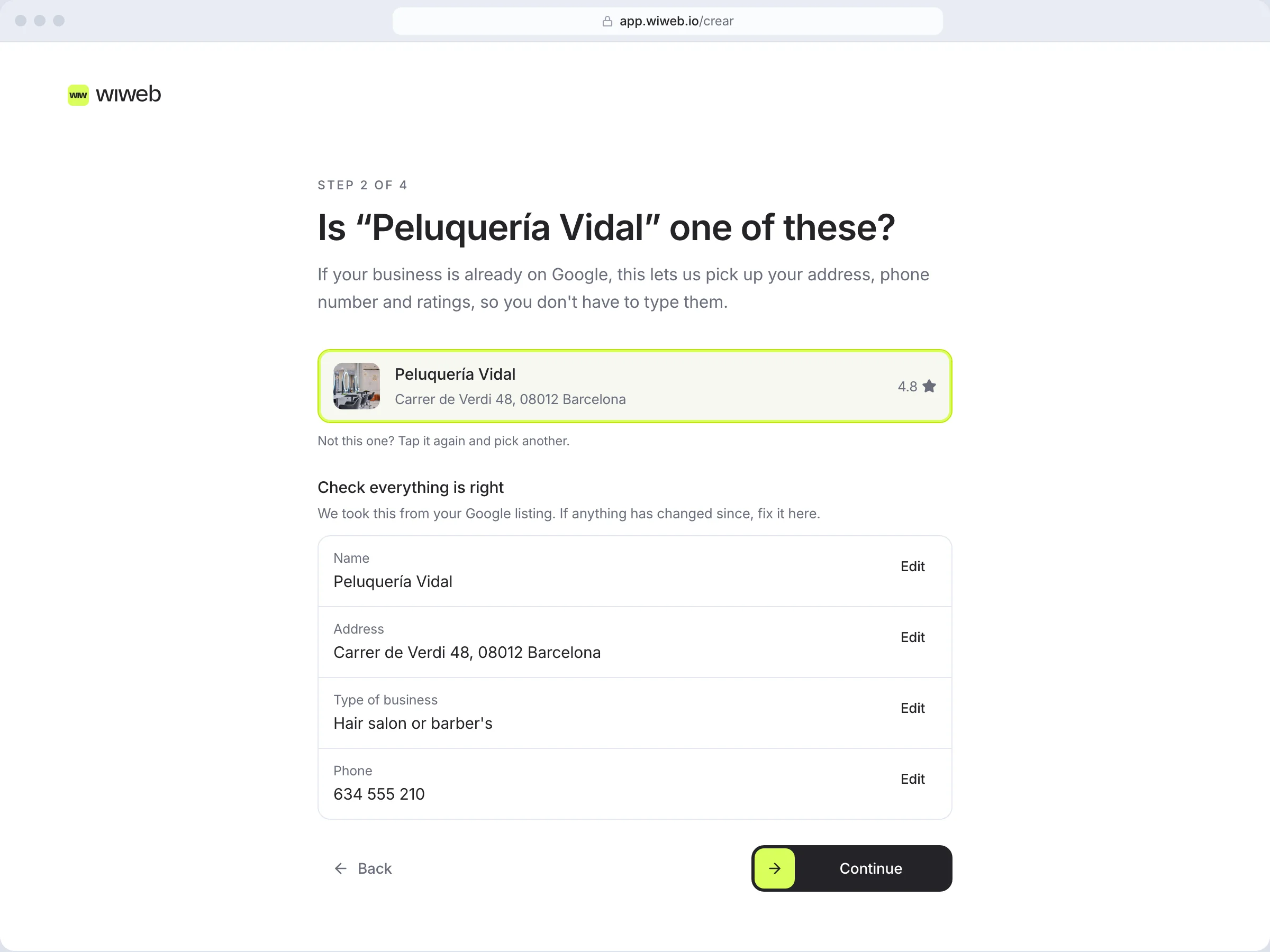
- On the “About your business” screen of the setup wizard, type your business name exactly as it appears on Google Maps and its city, and press “Continue”.
- We show you up to five matching profiles, with their photo, address and rating: “Is “…” one of these?”.
- Press yours. The others disappear and “Check everything is right” appears underneath: the name, address, type of business and phone number we've taken from your profile. If anything has changed since you set it up — an old address, for example — press “Edit” on that row, correct it and press “Done”.
- Press “Continue”. The next screen only asks what you do.
Picked the wrong profile? Tap it again: they all come back and you choose another.
What we take from your profile#
| From your Google Business Profile | Where we use it |
|---|---|
| Business name | Your site's headline (it replaces what you typed) |
| Address | Your site, the map widget and the registered address on your legal pages (you can change it when you publish) |
| Phone | Your site's footer and contact details |
| Rating and number of reviews | The hero and the “Google Business Profile” widget, which updates itself |
| Opening hours | The “Opening hours” widget: open or closed now, and until what time |
| Type of business | To know what you do, how to write your texts and which photos to give you |
| Location on the map | The “Where to find us” widget |
What we don't take#
- The photos. The Google photo only appears in the list so you can recognise your profile. Your site's hero photo is a stock photo that you can swap for your own in the editor.
- The text of the reviews. Your site shows the rating and the number of reviews; the text isn't copied. If you connect your profile, you choose which reviews appear on your site (see “Google profile”).
- Nothing from your account. When we create your page we don't go into your Google account: we don't read your messages, we don't post on your profile and we don't reply to reviews. If you connect your profile later, nothing is published unless you press the button yourself either.
If you can't find your profile#
Press “No, none of these is mine” (“We'll carry on without a Google Business Profile. Your site gets made just the same.”). On the next screen you type the address yourself, choose what you do and tell us about it. If we don't find any match, the wizard goes straight to that screen.
If your business isn't on Google, your site works just the same: it's just that the “Google Business Profile” widget won't have a rating to show until you confirm a profile. Creating your Google Business Profile is free and it's one of the things that helps people find you most; once you have it, confirm it in Settings.
Tip: if it doesn't come up, check that the city and country are your business's, and try the exact name of your profile on Google Maps, without adding the city or the type of business.
Change or confirm your profile later#
You change the profile in Settings › Your Google Business Profile.
- If you don't have one confirmed you'll see “No profile confirmed”. Press “Choose yours”.
- Search for your business and choose the profile.
- We save the profile, the rating and the opening hours. The widgets on your hero update to match it.
The same card has “Connect with Google”, if it's already available for your account (see “Google profile”). With your profile connected, the card says “Connected with Google · (your profile)” and when it was last read, with “See reviews” and “Disconnect”. If your Google account manages several profiles, underneath you choose which one we read with “Use this profile”.
Remember to publish so the change reaches your site.
Your reviews, in “Google profile”#
“Google profile”, in the dashboard menu (on your phone, in the ☰ menu), is the screen for your Google Business Profile. It works by connecting your profile with your Google account, with your permission: it's optional and separate from what we take when we create your page.
It isn't available for every account yet. If it isn't for yours, the screen says so (“Connecting your Google Business Profile isn't available for your account yet…”) and “Go to Settings” takes you to confirm your profile, which is where we get your rating from in the meantime.
To connect it:
- Press “Connect with Google”, here or in Settings › Your Google Business Profile.
- Sign in with the Google account that manages your profile and allow access. We only ask for permission for the profile.
- You come back to “Google profile” with the “Google Business Profile connected” notice. The first read takes a few minutes. If your account manages several profiles, we pick one and tell you which; you change it in Settings.
With your profile connected, the screen has four tabs (on your phone, a drop-down):
- “Overview”: the statistics for the last 30 days, “Your Google Business Profile” — how many times you appeared in Search and on Maps, how many people tapped call, your website, directions or book, and which words people found you with; Google provides them with about three days' delay — and next to them your latest “Unanswered” reviews, up to five, with “See all reviews (N)”.
- “All reviews”: every review, 20 at a time, with “Previous” and “Next”.
- “Updates”: what you post on your profile. See Post updates.
- “Profile details”: your site next to your profile. See Your profile details.
In “Overview” and “All reviews”, your profile is at the top: the name (press it to open it on Google), the address, your rating, how many reviews you have and how many are unanswered. On the right, when we last read it (“up to date …”) and the refresh button. If you see “Google has stopped accepting the connection…”, press “Connect again”. Underneath, one card per review, with its stars, its text and your reply if it already has one.
On each review:
- Replying (Grow). On unanswered ones, wi leaves the reply written (“wi suggests this reply”). Change it if you like and send it with the arrow in the box (“Publish reply”): nothing is published unless you press it, and pressing Enter doesn't send it. Google may take a few minutes to show it (“Google is reviewing it”). Without Grow you still see your reviews; instead of the box there's a line saying so, with “See Grow”.
- “On your site”, on any plan: the switch puts the review in your site's reviews widget, up to six. Your site needs that widget and the review needs text. Then publish so it shows.
With your profile connected, your rating updates itself, and wi lets you know on Home if you have unanswered reviews (“You have … with no reply”) or if your profile's hours aren't the ones on your site (“Your hours on Google aren't the ones on your site”). On Grow, also if your profile doesn't say the same as your site (“Bring your Google profile up to date”) or if you haven't posted an update for a week (“Post an update on your Google profile”). To stop, press “Disconnect” in Settings › Your Google Business Profile: we stop reading your reviews and your site keeps the rating it had.
Post updates on your profile#
In the “Updates” tab you post an update, an offer or an event on your Google profile — it shows in Search and on Maps. It's part of Grow: without it you see the screen, with a line saying so and “See Grow”.
- Choose the “Type”: “Update”, “Offer” or “Event”. Offers and events have a name and dates, “From” and “Until” (events, the time too).
- If you like, say what it's about in “What's it about? (optional)” and press “wi writes it”: it writes it from what's on your site. Or write it yourself in “Text”, up to 1,500 characters.
- Choose a “Photo” from your site, or “No photo”. Your own is best: Google removes stock photos.
- For an update or an event, choose the “Button”: “Book”, “Learn more”, “Call” (if your site has a phone number) or “No button”.
- Press “Post on Google”. Nothing goes out unless you press it. Google reviews it and it usually shows within minutes.
Don't put a phone number, email or links in the text: Google rejects it, and that's what the button is for. Underneath, “Your updates”: the ones you've posted from wiweb, with what Google says about each one (“Google is reviewing it”, “Live”, “Rejected by Google”), “View on Google” and “Delete”, which removes it from your profile and can't be undone.
Your profile details#
The “Profile details” tab puts what your site says next to what your Google profile says: “Opening hours”, “Closed days”, “Phone”, “Website link” and “Description”. Each one says “Same” or “Doesn't match”.
- “Put it on Google” sends what your site says to your profile. It may take a few minutes to show; sometimes Google reviews it first. It's part of Grow: without it you see the comparison, with a line saying so and “See Grow”.
- For opening hours, if they don't match, “Use Google's on my site” does the opposite: it puts your profile's hours on your site. Publish it whenever you like.
- You write the description right there, in your business's voice and without links, up to 750 characters. If your profile doesn't have one, we suggest one taken from your site.
Your site's opening hours and phone number are changed in Settings › Business. Once you've sent something, the “Latest changes sent to Google” appear underneath.