My page is where you change your site. On the left is the panel, with wi, SEO and style; on the right, your site exactly as your customers will see it, and that's where you choose what to edit: move your mouse over a part and its button appears. You open it from the top bar, at app.wiweb.io/mi-web.
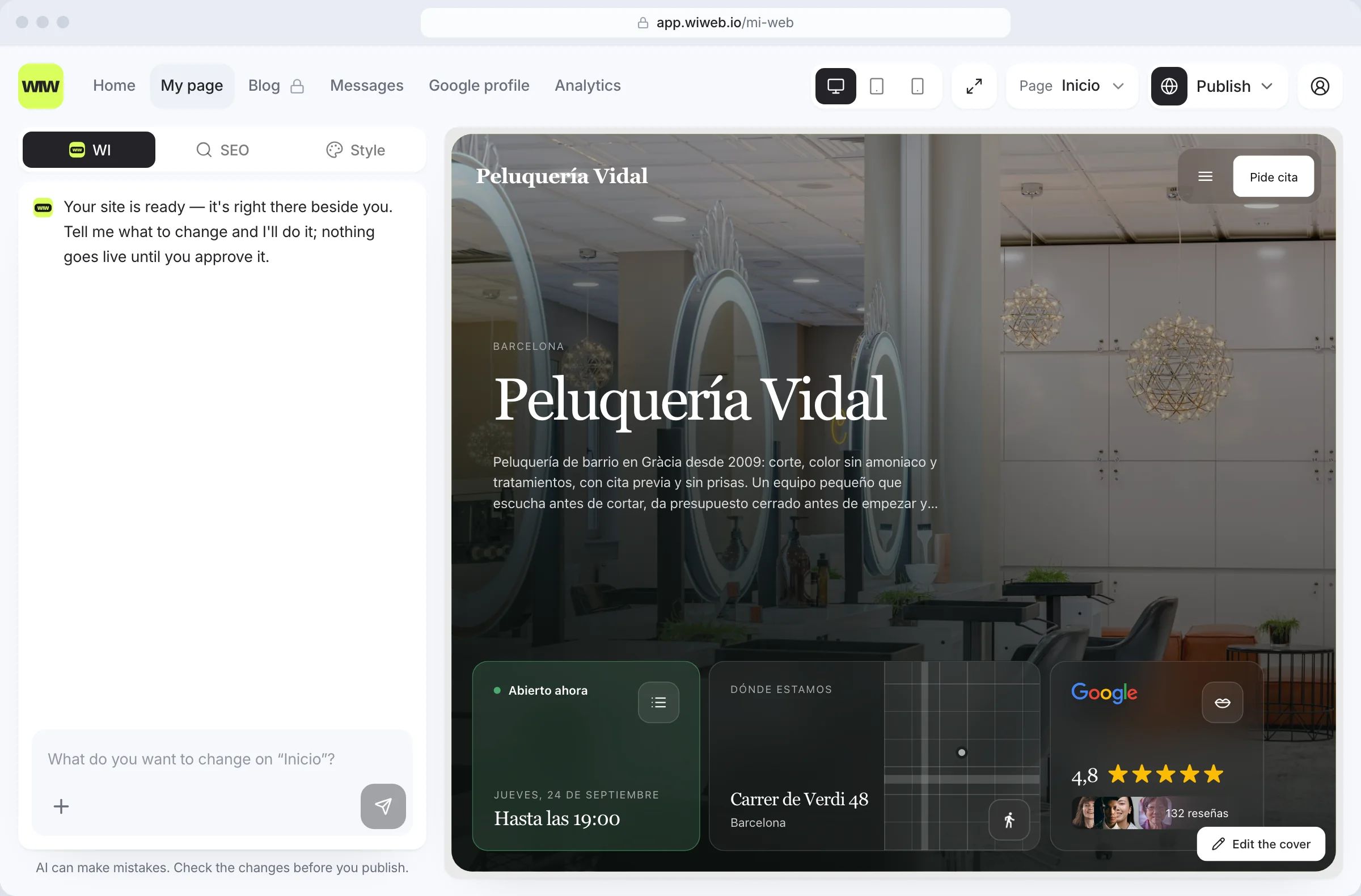
The top bar#
On the right of the bar, on this screen, there are four more controls:
- Desktop, Tablet and Mobile — three icons to see your site at the width of each screen. They only appear on a computer.
- Full screen — to see your site without the controls. You leave it with “Exit” or with the Esc key.
- “Page” — which page you're editing: Home, the ones you have (Services, Menu, FAQ, Gallery, Contact, Blog and, on a personal site, CV) and the legal ones. At the very bottom, one “Add …” row for each page you don't have yet. See Pages.
- “Publish” — sends your changes to the internet. See Publish your page.
If your site is in more than one language, you'll also see the “Preview language” selector, which only changes the language you see the preview in.
The panel tabs#
| Tab | What it's for | Where it appears |
|---|---|---|
| WI | Asking for changes in your own words. It's the one open when you arrive | All pages |
| SEO | How the page you have selected shows on Google and when it's shared | All except the legal ones |
| Style | Template, layout, colours, fonts, how the widgets look and the animation. Changes the whole site | All pages |
Pressing the tab that's already selected takes you back to WI.
Text and photos don't have a tab: you edit them from your own site, in the preview. See Editing in the preview.
The WI tab has its own section: Change your page with AI. So does Style: Style.
Editing in the preview#
Move your mouse over your site, on the right: whatever can be edited gets a lime outline and shows its button. Press it —or press that part, anywhere that isn't a link— and its window opens:
| In the preview | The button | What it opens |
|---|---|---|
| The cover, on Home | “Edit the cover”, bottom right. On the Grid template, the photo's pencil | Everything on the cover: the bar and its button, the logo, the background and the texts |
| A page's left-hand card | “Edit the page”, bottom right | Its title, its introduction and the card background |
| A page's right-hand column | “Edit the content” | What the page holds: the services, the menu, the questions, the photos, the form… |
| The footer | “Edit the footer” and “Rearrange”, top right | What appears in the footer, and moving it |
| A widget | The bin, “Swap” and the pencil; and at the end of the row, the “+” | See Widgets |
Hero#
The cover's window, “Hero”, holds from top to bottom:
- “Navigation” — the top bar and its button. See Navigation.
- “Logo” — whether it shows at the top, and its size. See Brand.
- “Cover background” — the photo, the video or a colour, with its blur or its opacity, and the animated background. See Style › The hero background.
- “Texts” — “Title”, “Subtitle” and “Tagline”. We warn you if a text is so long it will get cut off.
- On the Grid template, also: “Text over the photo” (off, the title and the line don't show on the photo, but they stay on the page for Google) and its “Position”; “Buttons”, up to two under the text, each “Primary” or “Secondary”; and “Logos on the photo”, up to eight of your clients' logos as PNGs with a transparent background, at the bottom of the cover in the text colour, with the “Label above the logos” (“Built for”).
How the headline and widgets are laid out is in the Style tab: “Layout”.
Navigation#
Your site's top bar, the same on every page. It's the first block in the cover's window:
- “Navigation bar” — on, at the top with your pages and the button. Off, your site has no bar: your pages stay in the footer and the button sits above the footer.
- “Expanded menu on desktop” — every page in view, instead of behind the ☰ menu. On mobile, always the ☰; on desktop too if they don't fit.
- “Bar background” — on its own background, like the widgets, or with no background, over the photo.
- “Action bar at the bottom” — a bar fixed to the bottom of the screen with your button and, if you have them, call and directions, like Booksy or Google Maps. Off, the button stays at the top, in the navigation.
Button#
Inside Navigation, your site's main button. In “What it does” you choose: “Book an appointment”, “Message on WhatsApp”, “Call by phone”, “Send an email”, “Go to my Contact page” or “Go to a link”, and in “Button text” what it says. “Remove” deletes it and “Add a button” brings it back.
Brand#
In the cover's window, the “Logo” block. “Logo at the top” shows it at the top left on every page, or hides it (your name stays in the footer and on Google). Below that, a slider for its size: “Logo size”, or “Name size” if you have no logo and your name shows at the top. While you move it you see it in the preview, and when you let go it's saved. The logo, its versions for light and for dark backgrounds and the icons are uploaded in Settings › Logo and icons; the name, in Settings › Business.
The other pages#
On Services, Menu, FAQ, Gallery, Contact, Blog or CV, the preview has two parts:
- “Edit the page”, on the left-hand card: its “Title”, its “Introduction” (on Services, also the “Terms”; on Contact, the “Form text”) and, at the bottom, the “Card background”. See each page's background.
- “Edit the content”, in the right-hand column: the services with their prices, the menu, the questions and answers, the gallery photos, the contact form fields, your CV or, on the Blog, “Posts per page”. The posts aren't written here: “Manage the posts” takes you to Blog. See Pages and Your blog.
When you add a page, its content opens by itself.
Footer#
Move your mouse over the footer in the preview and two buttons appear at the top right:
- “Edit the footer” opens the “Footer” window: one switch per piece (the ⓘ at the top explains it) —“Your brand line”, “Contact”, “Opening hours” and “Social media”— and, when it's on, what fills it right underneath: the tagline; a checkbox for whether your email shows and another for your phone —they're changed in Settings › Business—; the opening hours heading, the “Adjust the hours” link —the hours are changed in Settings › Business— and “Lines between days”; and the social media heading. “Legal notices” is always there. “Reset” goes back to the usual footer.
- “Rearrange” lets you drag the pieces in the footer: above or below another one, into another column, or to the right for a new column. When you're done, “Save”; to leave it as it was, “Cancel”.
Your pages always appear in the footer. The social media links are changed in Settings › Social media.
Widgets#
The widget library isn't in the panel any more: it opens with the “+” in the preview or with “Swap” on a widget, in a window with every widget as a card, each with a sample of how it looks on your site. At the very bottom, “Request a widget”, in case one is missing. See Widgets.
Generate with AI#
In a page's content window, every block has “Generate with AI”, and so does the SEO tab: it opens the WI tab with the request already started (“Rewrite the text in the … section”) so you only add how you want it.
Saving: on close, straight away or with “Update”#
There's no save button. Each thing is saved in one of these ways:
- When you close its window. What you change in the cover's window, in a page's windows (“Edit the page” and “Edit the content”), in the footer's and in a widget's settings is saved in one go when you close it: with the cross, with Esc or by clicking outside.
- Straight away. Everything in the Style tab; the cover background and each page's background, with their photo and video; the logo size; removing the button; and adding or removing pages.
- With “Update”. What you type in the SEO tab and what you do with the widgets in the preview —moving, swapping or removing them— builds up, and as soon as there's something unsaved a bar appears at the top of the panel, under the tabs, with two buttons: “Update”, which saves it to the draft, and “Undo”, which discards what you haven't saved.
- With “Save”. The footer's order, after “Rearrange”.
Saved isn't published: what you save is in your draft. For it to reach your site, press “Publish changes”. Every save is recorded in History, where you can go back.
Photos and images#
Every image slot has two buttons:
- “Upload” — a photo of your own, up to 5 MB. We shrink it before uploading so your site loads fast.
- “Search” — free photos from an image library, by topic.
You can also paste the link to an image. In the gallery, each photo has its “Caption” and its “Alt text” (what screen readers read out and what Google uses to understand the photo).
SEO: how you show up on Google#
The SEO tab (on every page except the legal ones) decides, for the page you have selected in “Page”:
- “Title on Google” — the blue headline of the result.
- “Description” — the two lines underneath.
- “Sharing image” — the one that appears when someone pastes your link into WhatsApp or social media.
There's a preview of how the result will look. If you leave them empty, we write them from your text. What you type here is saved with “Update”.
On mobile and tablet#
- On mobile the panel takes up the whole screen, with the AI first. You look at your site in “Preview”, the eye in the top bar, next to My page. “Page” and “Publish” are in the ☰ menu.
- On tablet the panel opens from the left with the pencil tab, “Edit this page”.