With Grow, your site can have a blog: posts you write — tips, news, answers to what people ask you — that Google reads. You write them in the dashboard, in Blog, and they appear on your site's Blog page, at yourbusiness.wiweb.me/blog.
Adding the Blog page to your site#
- In My page, open the “Page” menu and click “Add blog”. Without Grow, the row carries the plan's label.
- The page starts with the title “Blog” and no posts. In the preview, “Edit the page” (the left-hand card) changes its title and introduction; “Edit the content” (the right-hand column), the “Posts per page” (3, 6, 9, 12 or 24). Its title and description on Google are in the SEO tab.
- Publish your site so the page reaches it.
The Blog page doesn't show on your site until you publish the first post. An empty page isn't served, just like a gallery with no photos.
Writing a post#
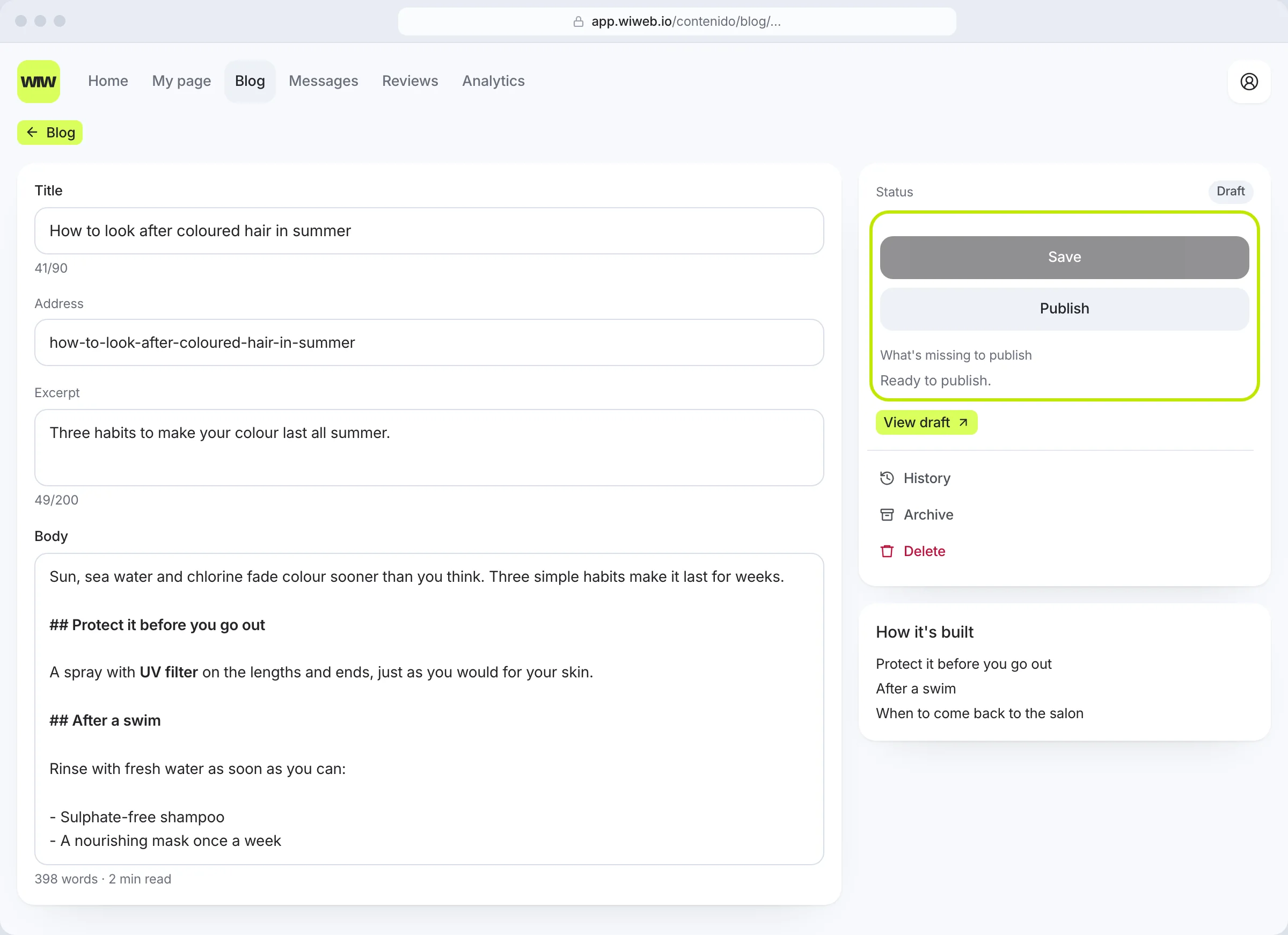
- In the dashboard, open Blog and click “New post”. A draft is created and you go into it.
- Write the “Title”. While the post is a draft, its “Address” writes itself from the title; you can change it.
- Write the “Body” in Markdown:
## A heading,**bold**,- a list,[a link](https://…). Underneath you see how many words it has and how long it takes to read; on the right, “How it's built”, the post's headings. - Add the “Cover photo”, what it shows, the “Tags” and the “Byline” (left empty, your business name signs it).
- In “On Google”: the title and description shown on Google and the keyword you'd like it to be found by. The counters turn red when you go over.
- Click “Save”. It saves when you click, never by itself: if you leave with unsaved changes, we ask “Leave without saving?”.
Photos inside the text must be uploaded to wiweb; photos from other sites aren't published.
Viewing the draft and publishing#
“View draft” opens the post in another tab exactly as it will appear on your site, in your style. Only you can see it.
In the right-hand panel, “What's missing to publish” tells you the first thing to fix: the title, an address of its own, at least 200 characters of body. When it says “Ready to publish.”, click “Publish”: the post is on your site right away, without publishing the site again.
Once it's published, the address doesn't change: it's the one on Google and in any links you've shared. You can still change the title.
Asking wi for a draft#
In the blog list, “Ask wi for a draft” asks you for the topic (“How to look after coloured hair in summer”). In a few minutes wi leaves a draft here, written from what it knows about your business, without making up facts or prices, and tells you on Home: “wi has left you a draft”. It's never published by itself: you read it, change what you like and publish it yourself. wi writes one at a time.
wi's plan: ideas to write about#
In Blog › Plan, wi suggests five topics every Monday. They come from what people actually look for:
- “Searched on Google”: the searches that found you, if your Google Business Profile is connected.
- “People ask you”: questions on your FAQ page you haven't answered yet.
- “From your business”: your services, when the rest doesn't add up to five.
Each idea says why it's worth writing and how wi would build it, section by section. Click “Use this idea” and wi leaves you a draft with the title, each section's heading in the body and, on the right of the editor, “wi's outline”: what to say in each part, to inspire you. The outline doesn't appear on your site; remove it with “Remove the outline” when you no longer need it. You write the post: until the body has real text, “What's missing to publish” won't let you publish it.
“Dismiss” removes an idea and wi won't suggest it again. “Ask for other ideas” prepares five new ones on the spot, up to three times a day; Monday's replace the ones you haven't used.
In several languages#
If your site has more than one language, each post has one version per language, with its own title and its own address. At the top of the editor you switch versions; a missing one is requested with “Translate into Catalan” (or whichever language): wi adapts it and leaves it as a draft.
If you change the original afterwards, the translation shows “Out of date”. Review it and click “Mark as up to date” when it is.
Unpublishing, archiving, deleting and history#
- “Unpublish”: the post leaves your site and becomes a draft again.
- “Archive”: it leaves your site and the blog list, but stays saved.
- “Delete”: deletes it with its history, after asking you. Versions in other languages stay.
- “History”: every time you save, publish or unpublish, a version is kept. “Restore” saves that one as the current one.
Where else your blog appears#
- On your hero page, with the “Latest posts” widget: the last three posts and the way into the blog. You add it like any other, with the “+” on your page (see Add, reorder and remove); you can add it as soon as you have a published post.
- In your site's sitemap, so Google finds each post, and in its feed,
yourbusiness.wiweb.me/blog/feed.xml. - In
/llms.txt, your site's index for AI assistants. - With its article markup for Google (
BlogPosting), with the date and the byline.
wi lets you know on Home if the blog is empty or if you haven't posted for more than four weeks, and suggests fixing what your published posts are missing (a Google description, a cover photo). Monday's report counts what you published that week.
If you leave Grow#
The blog is hidden from your site — the page, the tab, “Latest posts” — and the Blog screen in the dashboard closes. Nothing is deleted: when you come back to Grow, everything returns just as it was.