The quickest way to change your site is to say it in your own words: “I close at 3pm on Fridays”, “add the children's haircut at $12”, “switch the site to shades of green”. The AI makes the change in your draft and shows it to you alongside.
Where it is#
- In My page, the first tab of the panel: “WI”, the one with the lime cube. WI is wiweb's assistant.
- In Home, the “What would you like to change on your site?” box. The change is made right there, without leaving Home; to see it and keep refining it, go back to My page.
- When you edit a page's content — it opens when you press it in the preview — and in the SEO tab, each section has the “Generate with AI” button: it takes you back to WI with the request started for that section. Finish it and send it; if you send it as it is, WI asks you what you want to change.
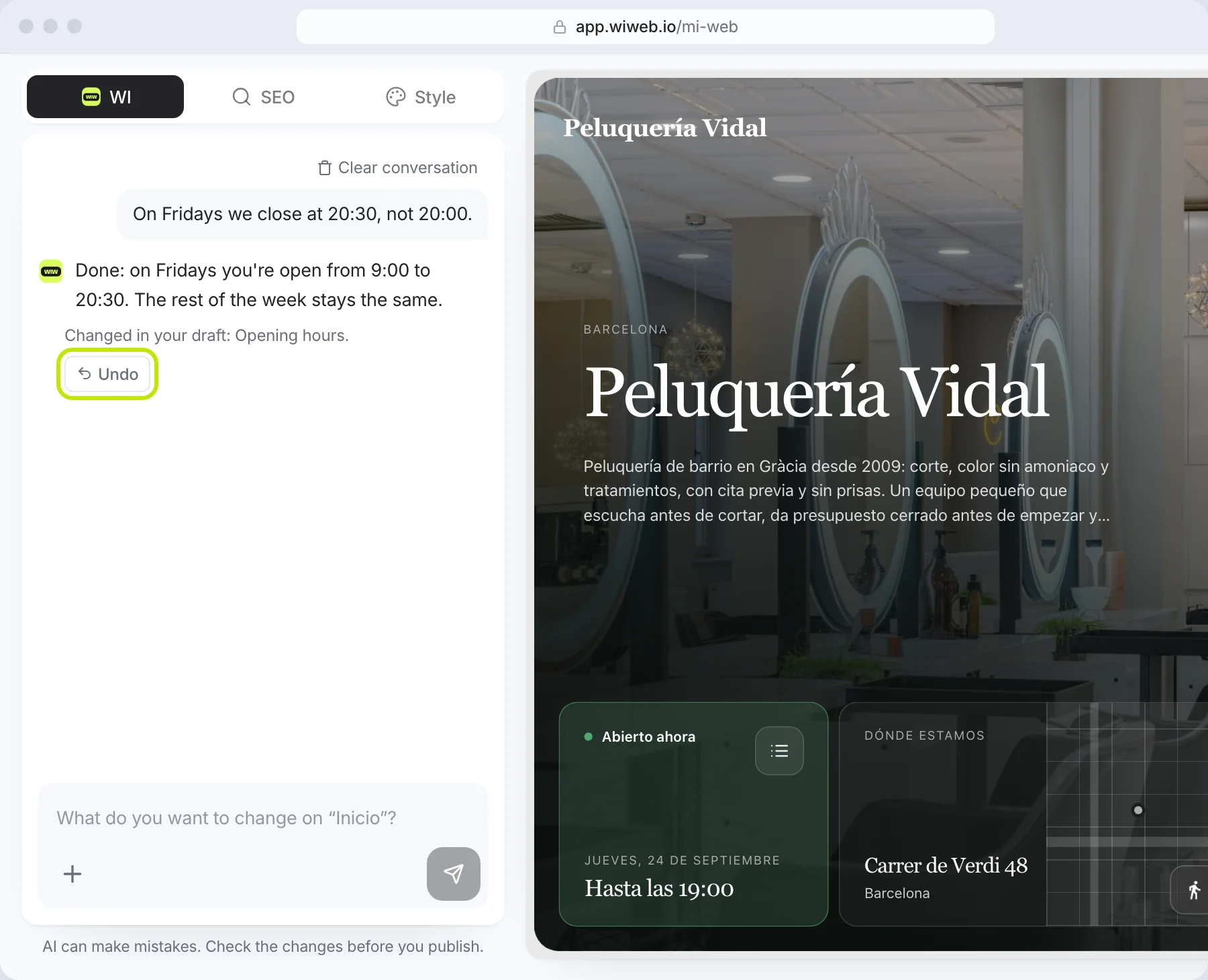
How to use it#
- Type what you want to change in the box at the bottom (“What do you want to change on…?”) and send it.
- The AI makes the change in your draft and replies with what it has done: “Changed in your draft: …”. If it couldn't, it tells you: “Nothing on your site has changed.”
- Look at the result in the preview. If you don't like it, press “Undo” under that change.
- When it's how you want it, publish.
If the request could be understood in two ways, it offers you options with “Did you mean…?” so you can choose with one tap. When the chat is empty it suggests a few requests to get you started.
You can also ask it how to do something in wiweb (“how do I connect my domain?”): it answers in a few sentences, with a link to the section of this help centre that explains it, and doesn't touch your site.
Nothing goes live until you approve it. The AI only touches the draft; your site changes when you press “Publish”. The AI can make mistakes: check the changes before you publish.
What it can change#
- The text of any section.
- Services and prices: add, change or remove them, one by one.
- The menu, if you have the Menu page and you're on it: dishes, prices, sections, allergens and tags, one by one.
- The FAQ.
- Your opening hours (“on Saturdays I open from 10 to 2”).
- Your social media (“add my Instagram: @yourbusiness”).
- The hero button and its booking link.
- The hero photo: by attaching it with the “+” or asking it to find one.
- The hero background: a colour or a gradient instead of the photo (“make the hero a purple gradient”), back to the photo, or blurring it. With a Hero home page, it can also make the hero light or dark (“light hero”).
- The hero layout, if your home page is Hero: centre or lower the headline, make it like Linktree (“Links”), like your Google or Booksy listing (“Listing”), in a column or as a mosaic, in one or two columns.
- The style of the whole site: colours, font, corners, the space between widgets and how they look (“frosted purple and blue glass widgets”, “thick borders, comic style”). It warns you: “Site-wide style — it applies to your whole site. You can fine-tune it in Style.”
- A whole template (“use the Lino template”): it changes the look of the whole site and how the home page is laid out; your text, photos and widgets stay. They're at wiweb.io/en/templates.
- Add or hide a section.
- Some widgets on your hero, if you give it what they need: a button with its link (“add a button for bookings”), an offer with its price and how long it lasts, a countdown with its date, a figure you give it (“12 years”). It never makes up a price, a date or a figure: if one is missing, it asks you.
- The title and description for Google, if you ask for it by saying “Google” or “SEO”.
- A testimonial from a customer, if you give it the text and the name of the person who said it. We never make up reviews.
- On a personal site, your CV: if you ask for it, the “Upload my CV” button appears underneath; you can also attach a photo of your CV. It reads it and builds the CV page.
On Grow, it also reads photos: attach a photo of your price list, your menu or your opening-hours sign and it puts them on your site (from the menu, without photos of dishes). On Free, type or paste the list as text in the chat.
What it can't change#
For safety, some things only you change, and in their own place:
| What | Where it's changed |
|---|---|
| Name, phone, email, registered address, NIF | Settings › Business |
| Domain and languages | Settings |
| Picking a widget from the library, swapping one for another, moving or removing it | On your own site, in the preview: the “+”, “Swap”, the pencil and the bin. See Widgets |
| Uploading the background video | The hero's settings: press it in the preview › “Cover background”. See The hero background |
| Add or remove pages | “Page” menu |
| The legal texts | “Page” menu › the legal pages |
| Publishing | “Publish” button |
| Your account and your billing | The account menu |
The AI doesn't delete sections: at most it hides them, and they can always be shown again.
Translating your site isn't something you ask for in the chat: it would write over your text. It's done in Translations.
Undoing and starting over#
- Every change the AI makes has its own “Undo”. When you press it you'll see “Undone.”
- Everything the AI does is kept in History with the label “With AI”, and from there you can restore any earlier version.
- “Clear conversation” empties the chat. It doesn't undo the changes: it just starts a new conversation.
We don't count messages and there are no credits: the AI has a fair monthly use, more generous on Grow. If you use it a lot one month, it tells you “You've used a lot of AI this month” and the day it's back, the 1st of the next month; meanwhile, you change your site by hand in My page. If you send a lot of changes in quick succession, it will say “One moment — give me a few seconds between changes.”