Your page starts life as a draft that only you can see. Publishing it is free on every plan: it goes online in seconds, at an address of ours with your business name.
Publish for the first time#
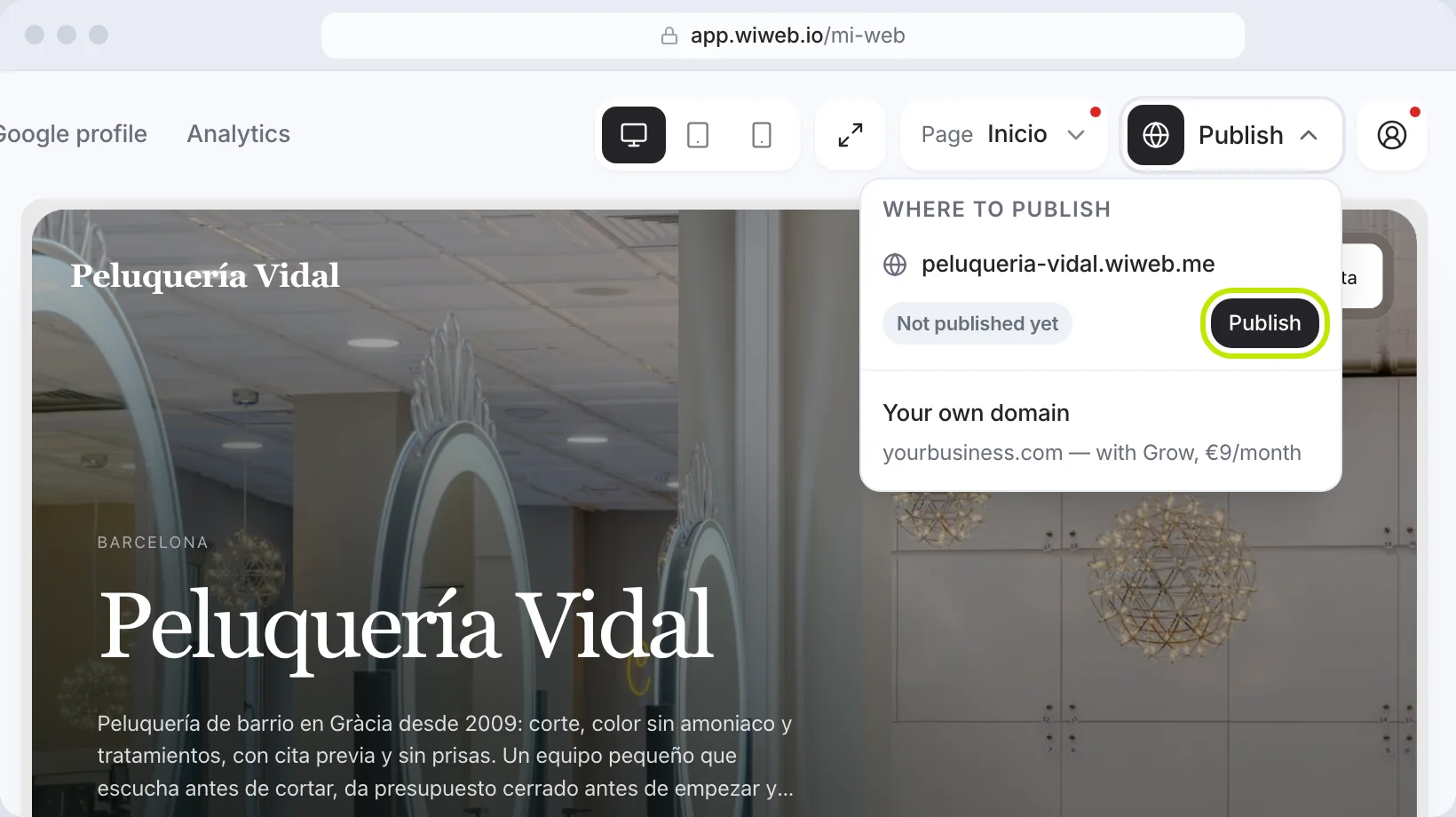
- In My page, press “Publish”, at the top right.
- The “Where to publish” menu opens. The first row is your free address, for example
yourbusiness.wiweb.me, with the status “Not published yet”. - Press “Publish” on that row. In a few seconds you'll see “Your site is live.”
We send you an email, “Your site is now live”, with the link so you can share it.
Your free address#
It's your business name, in lower case with no spaces or accents, followed by .wiweb.me: “Peluquería Vidal” goes live at peluqueria-vidal.wiweb.me. If that name is already taken, we add a number to it.
You can change it in Settings › Domain with “Change”. The old address still takes people to your site, so no link you've already shared breaks.
Sites created before 23 September 2026 have a number instead of the name (for example
8412.wiweb.me). If that's you, you can give it your business name from Settings.
Want yourbusiness.com? It's the second row of the menu, “Your own domain”, with the Grow plan. See Connect your own domain.
After every change, publish again#
Everything you change — by hand, with the AI or by applying an improvement — goes to the draft first. Your live site doesn't change until you publish again. That way you can try things out calmly without your customers seeing anything half-done.
When there are pending changes, your address's row says “Unpublished changes” and the button becomes “Publish changes”. When it's up to date, it says when you published (“Published 5 min ago”).
Blog posts work separately: each one is published with its own “Publish”, in Blog, and is on your site straight away. What does go through here is the Blog page itself: its title, its intro text or adding it for the first time. See Your blog.
What can stop you publishing#
The details for your legal pages are missing. A business's legal texts have to say who is responsible for the site, and we don't ask for that when you create it. So the first time you press “Publish”, “Details for your legal pages” opens:
- the tax ID (NIF or CIF; as you type it, the field becomes “Company CIF” or “NIF or NIE”; outside Spain, your country's tax number is fine);
- the “Registered business name” or, if the tax ID is yours, your “Full name”;
- the “Registered address”, already filled in with your business address: change it if it's different;
- an “Email”, which is required, and the “Phone” if you like.
Press “Save and publish”: your legal pages are written with those details and the site is published. You only do it once. If you close the window, nothing is published and your site stays a draft.
There's still filler that isn't true. It doesn't stop you publishing, but we warn you: “There's still example text”. Only about what says something that isn't true: the placeholder services (“Tu primer servicio”, “Tu segundo servicio”…) and a “Number” on your hero that we added as an example and that doesn't come from your details. “Review it”, if they're in a section, takes you to them; “Publish anyway” publishes. Each warning appears only once: if you publish anyway, we won't show you that same one again in that browser. You can also ask the AI to “remove the examples”.
What the AI wrote for your site — the questions, the services, the intros — we don't ask you about: publishing means you've reviewed it. Have a look at it in the preview before you press “Publish”.
A personal page doesn't need a tax ID: the window only asks it for an email, because its contact form needs a privacy policy. A site in the United States (the country you chose when you created it) doesn't either: there's no legal notice there, so the window only asks for the email for the privacy policy. See Legal texts and cookies.
While those details are missing you'll see a red dot on the editor's “Page” menu — inside it, next to the legal page that needs them — and on your account menu. If you open that legal page, the same window opens by itself, with “Save” instead of “Save and publish”. See Legal texts and cookies.
If something doesn't show#
- I made a change and it doesn't show on my site: check whether the button says “Publish changes”. If it does, it still needs publishing.
- It shows in the preview but not on my phone: reload the page on your phone; sometimes the browser shows the version it had saved.
- My site won't load: check the service status. If everything is green, write to us.