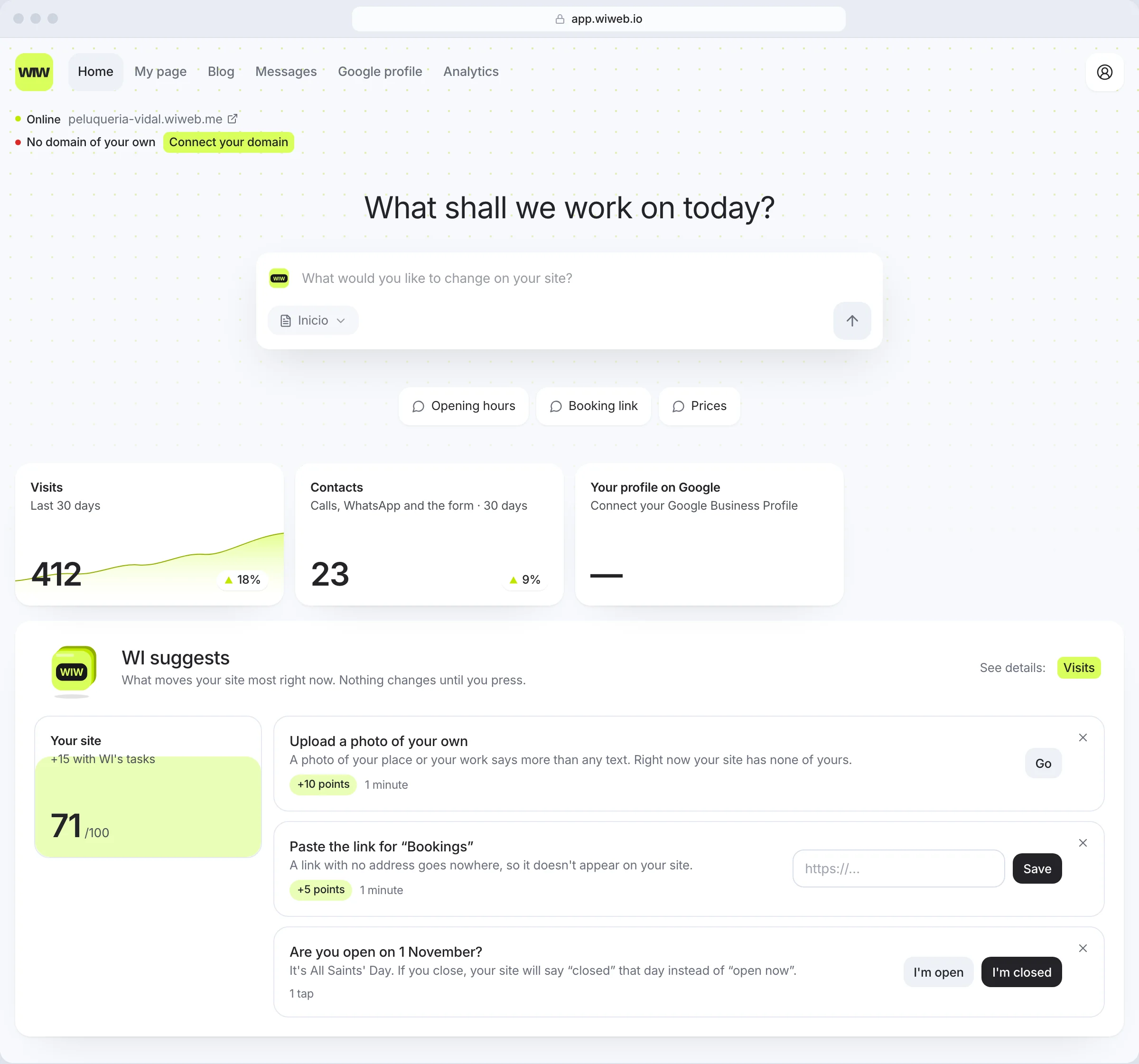
Home is the first thing you see when you sign in: the status of your site, a box for asking the AI for changes, your figures and what WI suggests. You get there by pressing the wiweb logo, at the top left, or “Home” in the bar.
The top bar#
The same bar is on every screen. From left to right:
| Button | What it is | Plans |
|---|---|---|
| Home | This screen. You can also get back to it by pressing the logo | All |
| My page | Your site's editor | All |
| Blog | Your blog posts. More | Grow; on Free, with a padlock |
| Messages | What people write to you from your site. Only shows if you have a Contact page. More | All |
| Google profile | Your Google Business Profile: its numbers, its reviews, its updates and its details | All |
| Translations | Your texts in another language. Only shows if you have a second language. More | Grow |
| Analytics | Your visits and what people tap on your site. More | All |
WI's tasks for your site are in “WI suggests”.
On the right is your account menu: a white button with a person icon, or with your business's logo if you have one. When you open it, at the top, your business name and your plan (“Grow plan”); underneath, History, Billing, Settings, Help and “Sign out”. At the bottom is the app version (“Version 2026.10.01 · …”): if you write to us about a problem, it helps if you copy it.
A red dot on your menu means there's something to sort out: a custom domain that doesn't point to your site yet, or details missing from your legal pages (the tax ID, the owner, the registered address or an email). Domains are fixed in Settings; legal details, in Settings › Business or in the window that opens when you publish.
On your phone the bar shows the destinations as icons, starting with Home (the house), with “Preview” after My page to see your site full screen. The ☰ menu on the right holds Google profile and Blog, what your plan doesn't include — with the name of the plan that has it, “Grow” — and your account: History, Billing, Settings, Help and “Sign out”.
The AI box#
Right at the top, with a question that changes each time (“What shall we work on today?”). Type what you want to change on your site, choose the page if you have more than one and send it (or press Enter). The AI makes the change in your draft right there and replies under the box; you don't leave Home. On a computer, there are suggestions underneath to get you started: pressing one types it into the box, and you send it.
There's no undo button here: if you don't like a change, go back from History. To see the change and keep refining it, open My page.
Your site's status#
At the top left, with no card. Pressing it (anywhere but the links) opens My page. It says what state your site is in:
- “Not published” — “Nobody can see it yet. Publish it and it'll be online in seconds.” See Publish.
- “Online” — one row per address; each one opens your site in a new tab. If you don't have your own domain, you'll see “No domain of your own”, with a red dot, and next to it “Connect your domain”, which takes you to Settings.
- “N new pages ready to publish” — you have pages in the draft that your live site doesn't show yet.
The three figures#
| Card | What it says |
|---|---|
| Visits | Visits over the last 30 days, compared with the 30 before, with their line. Pressing it opens Analytics. All plans |
| Contacts | Over 30 days, form messages plus the times someone tapped call, WhatsApp, email or booking on your site, compared with the 30 before. Pressing it opens Messages. All plans |
| Your profile on Google | How many times your Google Business Profile appeared on Google (Search and Maps) over 30 days, with the change and its line. Pressing it opens Google profile. Without the profile connected it says “Connect your Google Business Profile”; just after connecting, “Google takes a few days to count it”. It doesn't appear on a personal page |
WI suggests#
WI is wiweb's helper: it looks at your site and leaves you, at most, five tasks here, the ones that move it most. “Nothing changes until you press.”
To the left of the tasks is “Your site”: a score from 0 to 100 for how complete your site is — published, with a phone or email, opening hours, address, photos of your own, widgets with content and links with an address; with your Google Business Profile connected, also that your hours match Google's and that your reviews have replies. Underneath, how much it goes up if you do WI's tasks (“+N with WI's tasks”), or “Up to date”. It goes up as soon as you do one. The outline is green at 100 and red below 10. All plans.
Each task says what to do, why, how many points “Your site” goes up and how long it takes (“1 tap”, “1 minute”, “10 minutes”). Depending on the task, the button is:
- “Do it” — WI does it for you. When it changes something visible, it first shows you before and after, and you apply it with “Apply”.
- A field and “Save” — WI needs a detail: your phone, your address, a widget's link.
- “I'm open” / “I'm closed” — before a public holiday, “Are you open on 12 October?”. With “I'm closed”, your site says “closed” that day instead of “open now”.
- “Done it” — something done off your site, like putting your link in your Instagram bio. At most one of these at a time.
- “Go” — takes you to where it's done (uploading a photo, setting your hours).
Each task's ✕ is “Don't suggest this”: it won't come back for 90 days. While your site is unpublished, WI only suggests what comes before publishing, and the last one is always “Your site is ready. Publish it”.
WI emails you on Mondays (“WI has N things for your site”) only when there's a new task. Each task has its own link that takes you straight to it in Home. You turn them off with their switch, in Settings › Notifications.
On Grow, the Monday check. Every Monday we look at your live site — what Google reads, the text, the speed and links that no longer go anywhere — and, if you've connected it, your Google Business Profile. Whatever is worth fixing shows up here, among WI's tasks, and instead of WI's email you get the weekly report, with your visits and those same tasks. It doesn't include your position on the Google map or what AI tools say about you: no plan has that right now.
WI never changes your site on its own. Everything it applies goes to your draft; publish it whenever you like.
With the blog (Grow, with the Blog page on your site), WI tells you here if it's empty or has gone quiet for weeks, and leaves you the drafts it wrote for you to review.
Done by WI#
It appears once you've applied something from “WI suggests”: your latest changes, with their date. “Undo” takes your site back to how it was before that change, if it's the last thing you changed; if you've changed more since, “In History” takes you to History, where any version can be restored.
See details#
On the right of the “WI suggests” header, “Visits” opens Analytics. The analysis of your presence on Google (your position on the map, speed, what Google reads from your site) doesn't appear: no plan includes it right now.
If you don't have a site yet, signing in takes you to the setup wizard to create it; if you left it halfway, Home reminds you with “Let's create your site” and “Get started”.