Widgets are the glass pieces on your hero: each one shows one specific thing, at the moment it's needed. Whether you're open now, your Google rating, where you are, your prices. They all come with Grow, during the 14-day trial too.
All widgets#
| Widget | What it shows |
|---|---|
| Opening hours | Whether you're open now and what time you close today. It comes from your Google Business Profile or from Settings › Business. When you tap it, wi asks what you're changing: the hours of one day, or a day you open or close |
| Google Business Profile | Your rating and number of reviews from your Google Business Profile, with a link to it. Needs a verified profile |
| Where to find us | Your address with the map. Tapping it on your site opens “directions” |
| Featured review | A real review from a customer, with its author. We never make one up |
| Services and prices | What you do and what it costs, from your Services page |
| FAQ | Your questions, from your FAQ page. Needs at least two answered |
| For now, a link to your profile. Connecting Instagram (your posts and your followers) is coming soon | |
| TikTok | Your latest videos, or your follower count, big. Needs your account connected (see Connect your social media) |
| YouTube channel | Your channel and your featured video, or your subscribers. Needs your channel's address |
| Video | A YouTube video: paste the link |
| Photo | A photo of yours: wi asks for it with an upload button |
| Link | A small link, with its text. Three fit in the same slot |
| Featured link | A big link, with its photo. For what you want people to tap |
| Text | A line of yours, big, on your brand colour |
| Hero | A large card with your headline and, if you like, a line underneath |
| Number | A big number with what it counts: “12 years”, “400+ clients”. Only your own, true numbers |
| Profile | Your profile photo with a title and a subtitle. Without a photo, your initial on your brand colour |
| Intro | To introduce yourself or something, in one card: a small line on top, the headline, a line underneath and, if you like, a photo |
| Button | A button wherever you want it, with your text and where it goes: a website, a phone (tel:), an email (mailto:) or one of your pages, like /contacto. “Book now”, “Call us”, “Message us on WhatsApp” |
| Offer | An offer with an end date: what you're offering, the price, the old price (shown crossed out) and until which day. It shows all of that last day and the next day it disappears from your site by itself, without publishing again. It shows the offer and leads to booking or calling; nothing is charged through the site |
| Countdown | The time left until a date and time (Madrid time) —an opening, an event— or the time since one (“open since 2019”). One counting down disappears from your site by itself when it reaches zero |
| Latest posts | The latest posts on your blog, with their dates. Needs at least one published |
| Logos | The logos of your clients or of where you've worked, up to eight, in the text colour so none stands out |
| Embed | Something from another website inside yours: your Trustpilot TrustBox, your Calendly calendar, a Spotify playlist, a Vimeo video, a Google map or any address starting with https. Paste the address or the embed code (nothing you paste is ever run). Sites that refuse to be embedded —Booksy, Treatwell— show as a button that opens them. On your published site, the outside content only loads if the visitor accepts “Content from other websites” in the cookie notice |
| Colour | A tile of colour with nothing on it. It's what wi puts in a gap when she has no photo left |
Up to nine widgets fit on your hero, and thirty more below it (see More widgets below the cover). On a personal page, Opening hours, Google Business Profile and Featured review don't appear.
What about bookings? We don't take bookings ourselves: your booking system is linked from your site's main button, with a Button widget, or with a Link or Featured link. If you use Calendly, its calendar can go inside your site with Embed.
Add, replace and remove#
You change widgets by tapping them on your own site, in the preview in My Web. Tapping one is talking about it with wi: the conversation shows its name, “What would you like to do with this widget?” and three buttons.
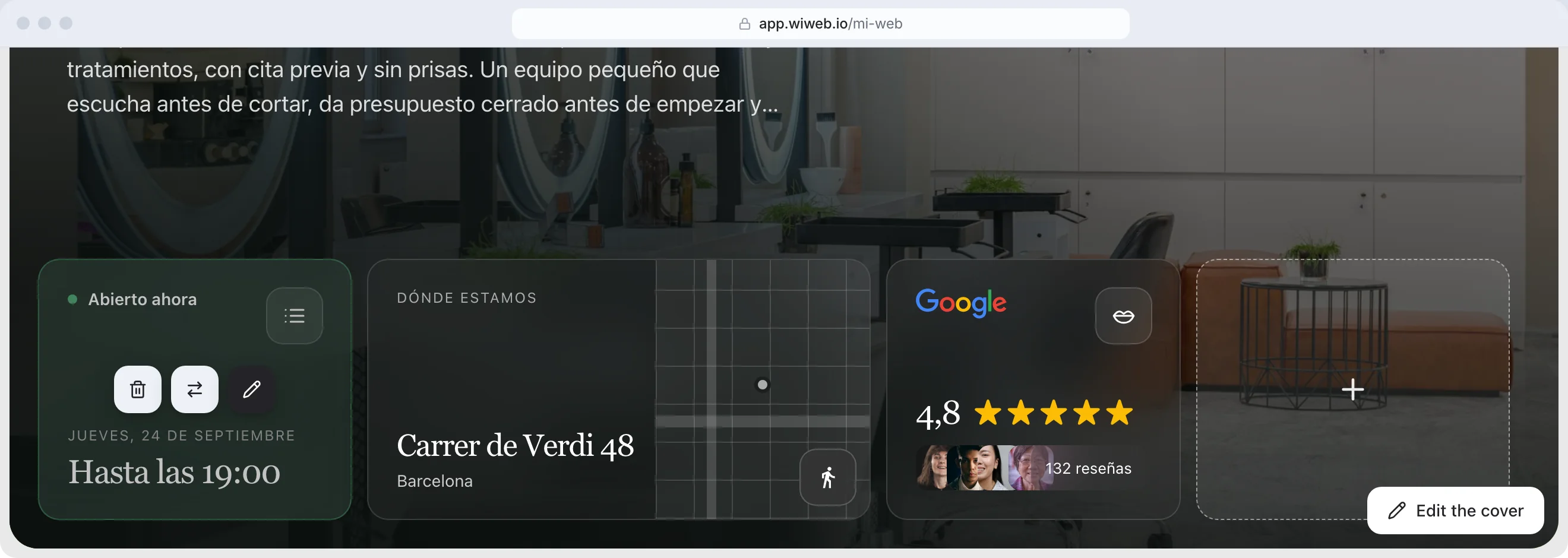
- “Edit”: if the widget holds your own details —a text, a link, a price, a date, a photo—, wi shows them in filled-in fields: change what you like and press “Save”. If it draws on your business, Google or a social network, wi asks what you want to change.
- “Replace”: wi gives you the list of all widgets. The ones that can't be added yet are greyed out: tap one and she tells you why and where to fix it. Below, “See the catalogue” opens the library, with each widget drawn in your site's colours and fonts.
- “Remove”: it goes straight away and leaves its “Changed” card in the conversation, with “Undo”, in case it was a slip.
On a TikTok or YouTube widget with no account connected, the first button is “Connect”.
Adding one. On the hero, each empty cell has a “+” (“Add a widget here”): press it and choose from the library. You can also ask wi in your own words: “add an offer: colour at $35, was $45, until the 31st”. Once it's added, wi tells you what she's put and asks for what's missing with its fields, and it's ready when you press “Save”. If it already shows what she knows about your business, she says so and you can change it right there.
How it looks. Many widgets come in several shapes: ask wi for “another style” and she shows them as thumbnails; tap the one you like and she sets it. For size, colour or position, tell wi too.
Moving them. On the hero you drag them on your site; on a touch screen, keep your finger on one to pick it up. Resize one by pulling its bottom-right corner. If what you move overlaps other widgets, they move to the nearest free space; if there's no room, nothing moves. The hero photo is a piece too: it moves and resizes like a widget.
A widget still missing its details shows as a grey space, only in the preview. Tap it and wi asks for what's missing. Everything saves by itself; to make it show on your site, publish.
More widgets below the cover#
Your hero fills one screen. If you want more, the page carries on downwards: between the hero and the footer there's room for up to thirty more widgets, in rows. They're the same widgets.
- Scroll down in the preview to below the hero: you'll see a block with a “+” and “Add a widget below”. Press it and choose from the library.
- Tap one to edit, replace or remove it, as on the hero.
- They aren't dragged here: they go in the order you add them.
With none, nothing shows below on your site.
Automatic selection#
When we create your site we choose the widgets ourselves from what we know about your business. We only add widgets with your own data: nothing for show. If a gap is left on the hero, a photo or a Colour tile fills it. We never choose Embed or Colour on our own: you add them, or wi does when you ask.
As soon as you change the widgets, the selection becomes yours and we stop changing it. If you want us to choose again, open the library and press “Reset”, at the top right: it asks first, because every widget you've added goes, with everything you wrote in it.
The glass#
How they all look at once is changed in My Web › “Advanced” › “Widget style” (see Style), or by asking wi:
- “Background” — “Glass” (the usual one, with your site's colours), “Colour”, a gradient (linear, radial or conic) or “Colour mesh”. The text on top adjusts itself to stay readable.
- “Liquid glass” — a rim of light and a soft sheen, with its “Shine”.
- “Shadow” and “Border”.
- “Opacity” — how much of the photo shows through the widget — and “Blur” — how much the photo behind is blurred.
- “Labels as pills” — each widget's label is wrapped; with “Pill colour”, in the colour you like.
- “Thick stroke” — an ink outline and a hard shadow on widgets and buttons, like a sticker.
- “Stickers” — four stickers in the corners of the hero, behind everything: they never cover a link.
- “Corners” — it also affects buttons and photos.
- “Space between widgets” — from 0 to 16 px.
Connect your social media#
- TikTok: tap the widget and press “Connect” (or “Connect my TikTok”): you sign in to TikTok with your account and come back to the conversation.
- YouTube: wi asks for your channel's address in a field, “Your YouTube channel” (your @handle or youtube.com/@yourchannel), and connects it with “Connect my channel”.
- Instagram: connecting it isn't available yet; it's coming soon. Meanwhile, wi adds a link to your profile.
You can also connect them in Settings › Social media.
Request a widget#
Missing one? In the library —the one the “+” and “See the catalogue” open—, at the top right, press “Request a widget”: give it a name and tell us what it should show. We read every idea, and the most requested ones are what we build next.