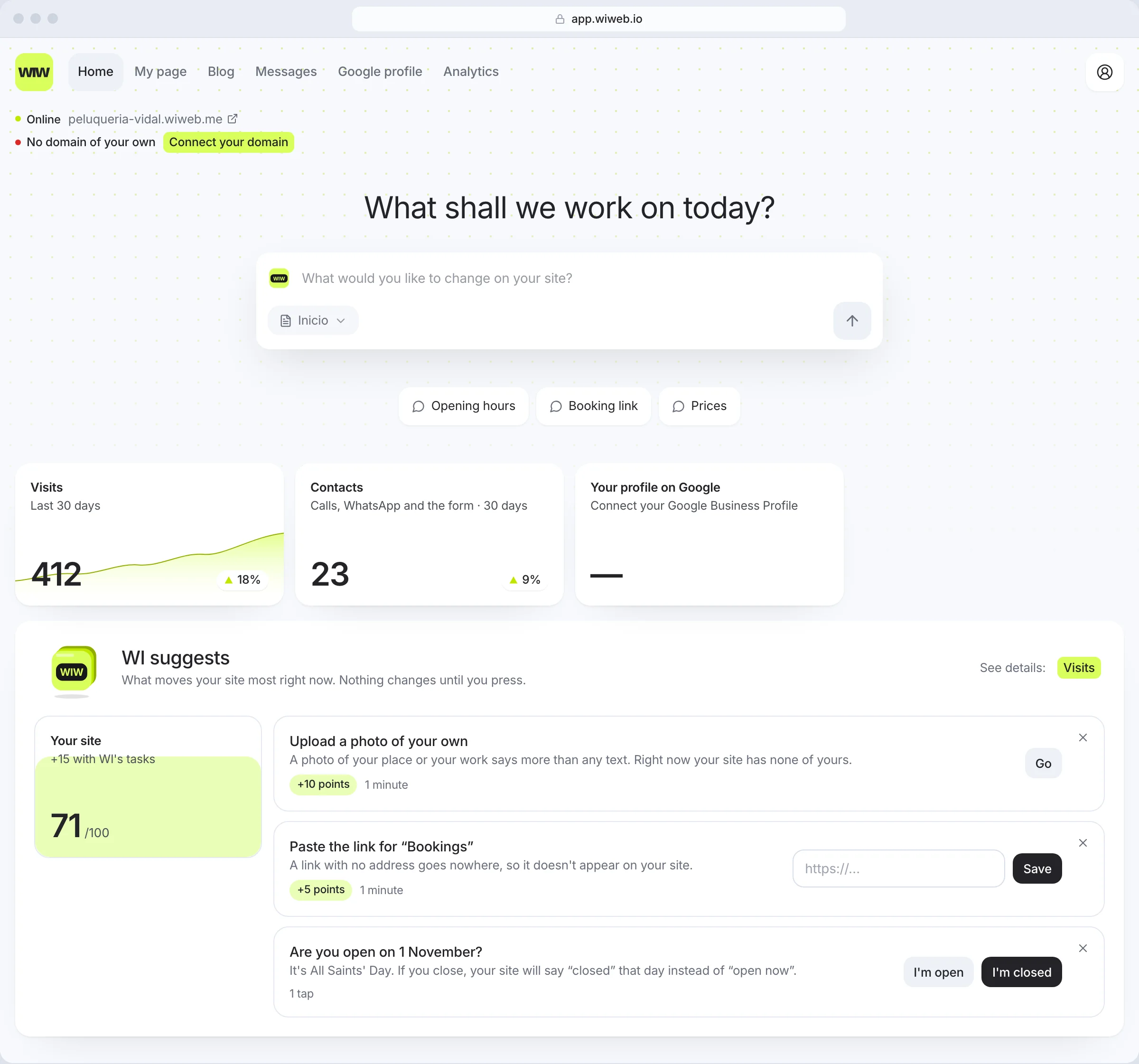
Home is the first thing you see when you sign in once your site is published: your brand at the top left, wi in the middle with its field and, underneath, your figures. It's a screen to start from: whatever you ask wi here gets done in My Web, where the whole conversation is, with your site alongside.
While your site isn't published, there's no Home: when you sign in you go straight to My Web, which is where the site gets made. The Home square appears in the bar as soon as you publish.
The bar at the top#
The dashboard bar is at the top right, the same on every screen. On a computer it's a row of squares; the one for the screen you're on is black and, when you hover over it, each one shows its name:
| Square | What it is |
|---|---|
| Home (a house) | This screen. Only there once the site is published |
| My Web | Your site and the conversation with wi. See My Web |
| Messages | What people send you through your site's form. Only there if your site has a form. More |
| Google profile | Your reviews and your profile. Only there with the profile connected. More |
| Content | The text and lists on your pages, the blog and the translations. More |
| SEO | How each page shows up on Google. See SEO |
| Analytics | Your visits and what people tap on your site. More |
The last square, with a person on it, is your account: it opens a menu with History, Billing, Settings, Help and “Sign out”. A red dot on it (and on Messages) means you have new messages. At the bottom of the menu is the app version (“Version …”): if you write to us about a problem, it helps if you copy it.
On a tablet and on a phone (below 1024 pixels wide) there are no squares: everything is in a single menu button (☰) at the top right, with the screens at the top and the account ones underneath.
Ask wi for something#
In the middle, wi greets you by name — “Hi, Marta.” — and asks “What shall we change today?”. Type whatever you want in the “Ask wi for something…” field — “say I close at 3 pm on Friday”, “add a button for bookings” — and send it with the arrow or with Enter.
wi doesn't answer here: it takes you to My Web with what you wrote, and does it there, with your site alongside so you can see the change. See Change your page with wi.
Your figures#
Under wi, up to three cards. On a computer, the arrow at the top right of each one takes you to its details.
| Card | What it says |
|---|---|
| Visits · Last 7 days | Last week's visits, with one bar per day; the best day's in lime. Takes you to Analytics |
| On Google · Times you show up | With your Google profile connected, how many times it showed up on Google in 30 days, how many on Maps and how many in Search; takes you to your Google profile. Without a profile, “Your Google ranking, every month”, and it takes you to Analytics |
| Contacts · Last 30 days | The people who wrote to you through the form or tapped call, WhatsApp, email or book on your site, by channel, and how many new messages you have. Takes you to Messages |
Just after you connect the profile, On Google says “Google takes a few days to count it.”. Contacts doesn't show if your site has no way of contacting you (no form, phone, email, WhatsApp or booking link): it would stay at zero for ever.
What wi changes, and how to undo it#
Everything wi changes goes to your draft, never straight to your site. In the My Web conversation, each change appears on a card with a lime tick — “Changed · Map” — and its “Undo” button, which puts it back as it was. To go further back, History keeps every version of your site. Your customers see it when you publish.
My Web: the conversation and your site#
The whole conversation with wi, and your site as your customers will see it, are in My Web (the square next to Home). That's where you tap any part of your site to talk about it with wi, switch pages and publish. See My Web.
If you don't have a site yet, wi greets you when you sign in and builds it while talking with you (see Create your page).
If your site is paused#
If your 14-day Grow trial (or your subscription) ends without payment, your site is paused: it stops being visible and the dashboard only opens Billing and Settings. We keep it exactly as it is for 60 days; as soon as you add your card in Billing, it comes back as it was.