The quickest way to change your site is to tell wi, wiweb's designer and assistant, in your own words: “I close at 3 pm on Fridays”, “add the children's haircut at $12”, “switch the site to shades of green”. wi makes the change in your draft and you see it straight away on your site, alongside.
Where it is#
- In My Web: on a computer, the conversation is to the right of your site, with the “Ask wi something…” field at the bottom; on a tablet, underneath your site; on a phone, the field is at the very bottom and tapping it opens the conversation full screen.
- On Home, once your site is published: whatever you type in “Ask wi for something…” takes you to My Web, and wi does it there.
- By tapping your site: tap any part of your site in My Web — a widget, the hero, a page's header, the footer — and the conversation turns to that part. See Tap your site to change it.
- On the SEO screen, the title and the description have their own “Write with wi”, which writes that line without going through the conversation.
How to use it#
- Type what you want to change in the field and send it with the arrow or with Enter. With the “+” you attach a photo.
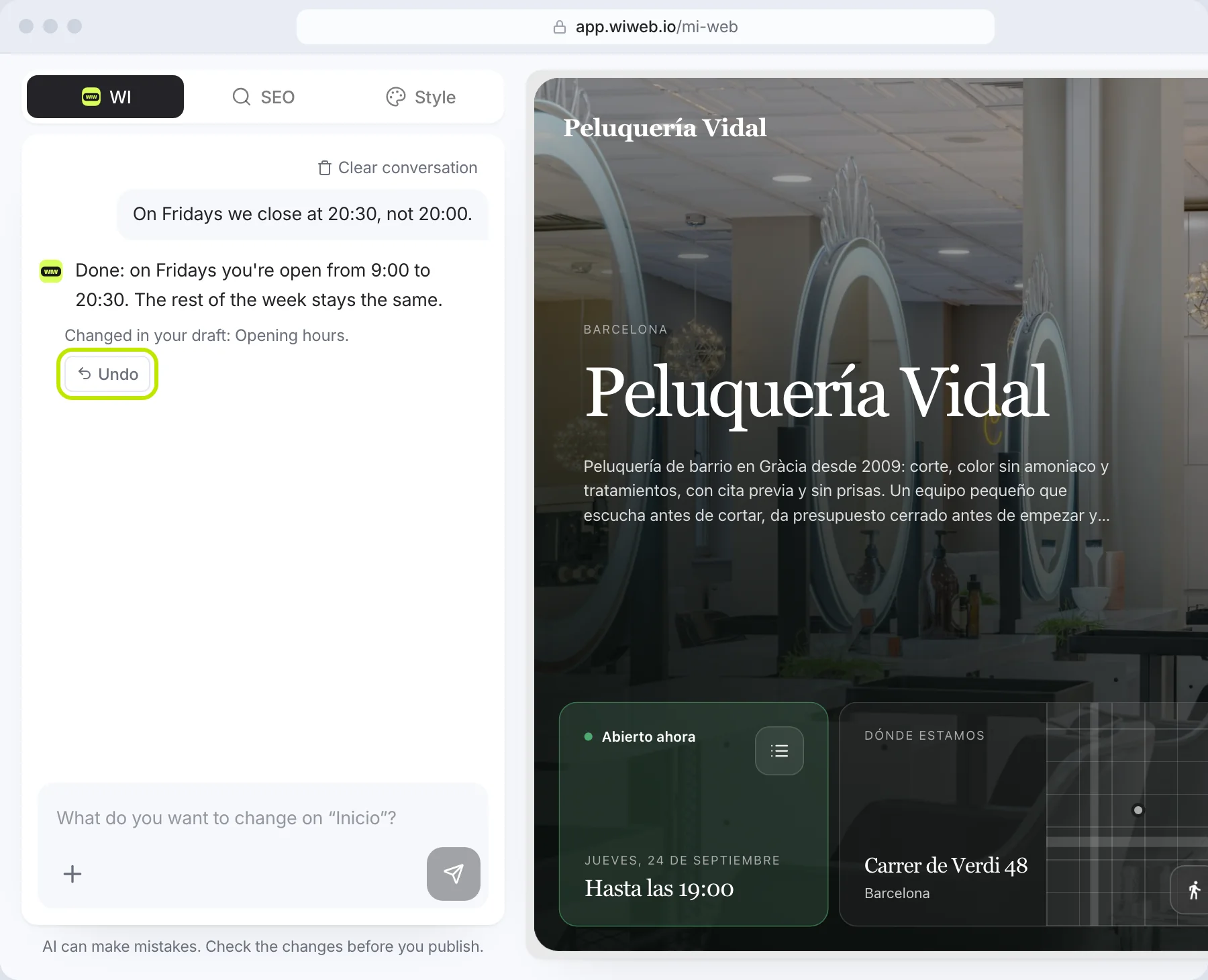
- wi makes the change in your draft and tells you what it did. Underneath, a card shows what changed — “Changed · Opening hours” — with its “Undo”. If it couldn't do it, it tells you.
- Look at the result on your site, alongside. If you don't like it, press “Undo” or ask for something else.
- When it's how you want it, publish.
You can also talk to it. The black microphone square, inside the field, is pressed to start dictating and pressed again to stop; on a computer, you can also hold ⌥ Space. What you say is typed into the field; then you send it. If your browser can't listen, the microphone doesn't appear.
With the conversation empty, wi greets you — “Tell me what to change and I'll do it. Nothing goes live without your OK.” — and suggests a few requests tailored to your site, numbered: press one to ask for it. When it needs a detail, it asks you with the answers as buttons; “Something else…” lets you answer by typing. If your request could be read two ways, it offers options with “Did you mean…?”.
When what's needed is an exact detail — your phone number, your email, your premises' address, your legal details — wi asks for it in fields inside the conversation, checks it and saves it when you press the button.
You can also ask it how to do something in wiweb (“how do I connect my domain?”): it answers in a few sentences, with the link to the section of this help that explains it, and doesn't touch your site.
Nothing goes live without your approval. wi only touches the draft; your site changes when you press “Publish”.
What it can change#
- The text on any page.
- Services and prices: add, change or remove them.
- The menu, if you have the Menu page: dishes, prices, sections, allergens and labels.
- The FAQ.
- Your opening hours (“on Saturdays I open from 10 to 2”).
- Your social media: adding your Instagram link, connecting your TikTok (you go to TikTok, sign in with your account and come back to the conversation) or your YouTube channel (you paste its address into a field), and disconnecting them.
- The hero button and its link, and a fixed bar at the bottom with that button.
- Photos: the hero one or the header one on any page, attaching it with the “+” or asking it to find one.
- The background: a colour or a gradient instead of the photo, back to the photo, blurring it or an animated background.
- The hero layout: where the headline goes and how the widgets are arranged.
- The style of the whole site: colours, font, corners, the space between widgets and how they look (“frosted-glass widgets in purple and blue”). It warns you that it applies to your whole site and that you can fine-tune it in “Advanced”. It also saves today's look as a theme, or goes back to another one.
- The widgets on your hero: adding one if you give it what it needs — a button with its link, an offer with its price and how long it lasts, a countdown with its date, a figure you tell it (“12 years”) —, changing what one says or removing it (“remove the map”). It never makes up a price, a date, a figure or a link: if one is missing, it asks you.
- The footer: your brand's tagline, which pieces show and where.
- Pages: adding one (it comes already designed, with your site's look), hiding it or, if you say “delete”, removing it. With “remove”, it hides it.
- The title and description for Google on any page, if you mention “Google” or “SEO”.
- Languages: adding one (“put my site in English too”) — it leaves it translated in your draft for you to check in Translations —, removing it, or correcting a text in another language without touching the original.
- The blog page. Posts are written in Content: see Your blog.
- A testimonial from a customer, if you give it the text and the name of who said it. We never make up reviews.
- On a personal site, your CV: attach a photo of your CV and it builds the CV page.
It also reads photos: attach with the “+” a photo of your price list, your menu or your opening-hours sign and it puts them on your site (from the menu, without photos of dishes).
What it can't change#
Some things, for safety, only you change, in their own place. If you ask wi for them, it tells you where and gives you the button to go there; if it's Settings, it warns you: “This is the Settings page: you leave the conversation. To come back, “Back to wi” at the top.”
| What | Where it's changed |
|---|---|
| Your business name, tax ID, registered name and registered address | Settings › Business |
| Your domain | Settings › Domain |
| Google Analytics | Settings › Google Analytics |
| The legal pages | “My pages” › “Legal pages”. See Legal texts and cookies |
| Moving a widget or resizing it | On your site, in My Web: by dragging it. See Widgets |
| Publishing | The “Publish” button, at the top right of your site |
| Your account and billing | Your account menu, in the bar at the top |
If something can't be done in wiweb, wi doesn't stop at no: it tells you where it's done, what similar thing is possible, or to write to soporte@wiweb.io.
Undoing and starting over#
- Every change wi makes has its “Undo” in the conversation. When you press it, the card is crossed out with “Undone.”.
- Everything wi does is kept in History, and from there you can go back to any earlier version.
- If your site dates from before the wiweb of today, wi offers once to rebuild it from scratch with a new design: “Start fresh with a new design” or “Leave my site as it is”. Your details stay, the result is a draft and your published site doesn't change until you publish.
We don't count messages and there are no credits. If one month you use wi a great deal, it tells you “You've used a lot of AI this month” and the day it's back, the 1st of the next month; meanwhile, you can keep changing your site by hand: “Advanced”, each widget's buttons, dragging and the Content screen. If you ask for lots of changes in a row, it'll say “One moment — give me a few seconds between changes.”.