My Web is where you change your site. On one side is your site as your customers will see it; on the other, the conversation with wi. To change something, you tell wi or you tap that part of your site. It opens with the My Web square in the bar at the top, or at app.wiweb.io/mi-web. While your site isn't published, it's the first thing you see when you sign in.
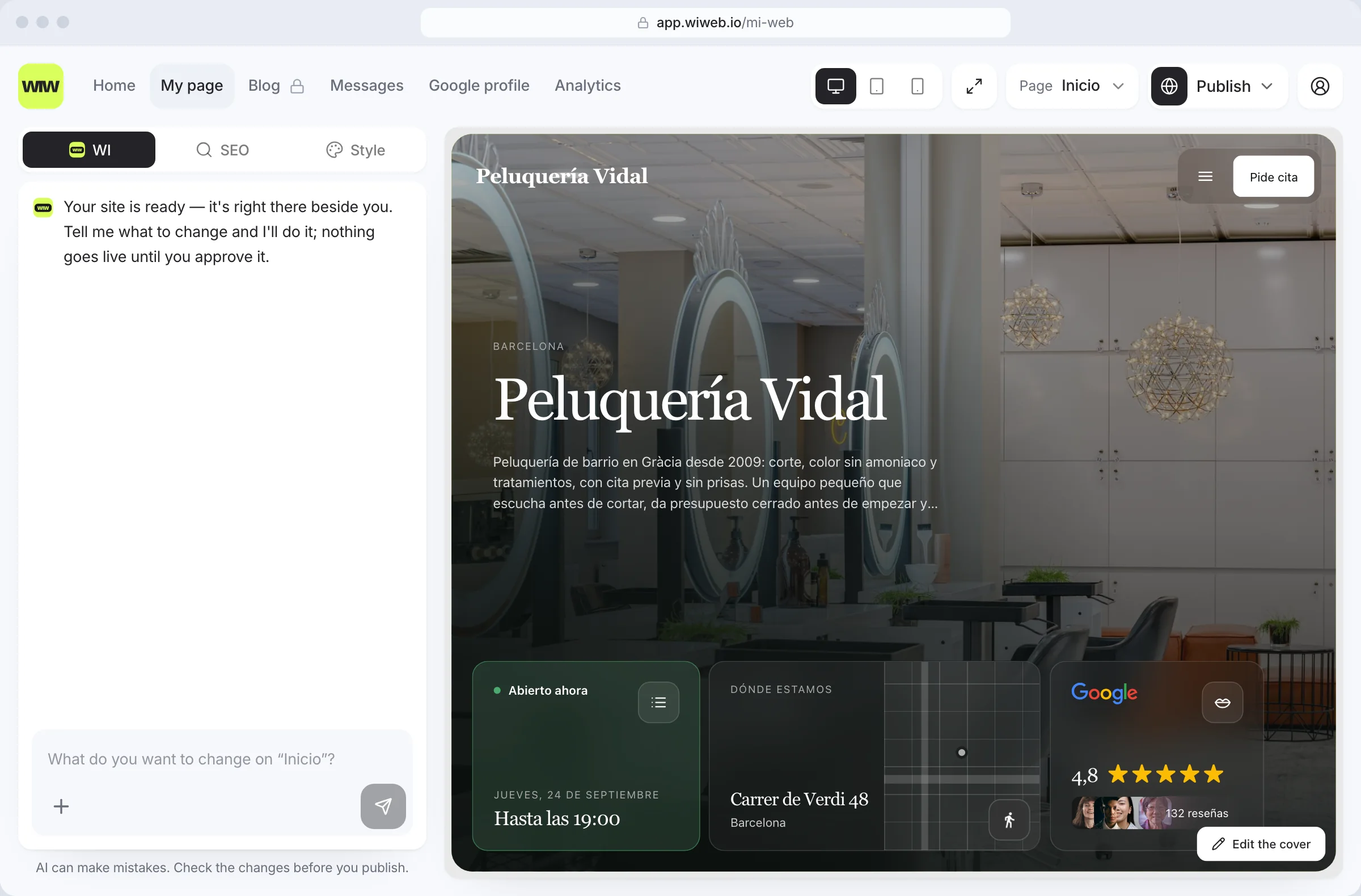
The My Web screen#
On a computer, from top to bottom and left to right:
- Your brand — your logo (or your initial), your business name and, underneath, your site's address: your domain if you have it connected and, if not, the
wiweb.meone. Click the address to open your site in another tab. - “My pages” — shows which page you're looking at (“Home”) and opens the list: your pages, to look at another one; when you hover over each one, its buttons to move it up, move it down, rename it or remove it; underneath, the ones you don't have yet, each with “Add”; and at the end, “Legal pages”. See Pages.
- The preview widths — four buttons to see your site as it looks on each screen: Responsive (at whatever width you have), Desktop, Tablet and Mobile. They only change how you see it here.
- “Publish” — the black button on the right. See Publish your page.
- Your site, underneath, in its frame. It works as it does online: it scrolls and its menu links take you to each page.
- wi, on the right: at the top, “WI Designer” and the “Advanced” button; in the middle, the conversation; at the bottom, the “Ask wi something…” field. See Change your page with wi.
The first time you come in, a few bubbles show you where everything is; “Skip” closes them.
wi, “Advanced”, SEO and Content#
My Web has no tabs. What used to be spread around is done like this:
- What your site says and how it looks, by talking it through with wi, in the conversation on the right.
- The look, by hand: “Advanced”, at the top right of the conversation, swaps the conversation for “Advanced settings”: the hero layout, the “Site background”, the colours and the font, the “Widget style”, the corners and the space between widgets. With another page in view, also its design and the “Card background”. Your site changes straight away on the left. The button with wi (“Back to wi”) takes you back to the conversation. See Style.
- How you show up on Google, on the SEO screen. See SEO.
- The text and lists on each page (services, menu, FAQ, gallery, blog…) can also be changed by hand on the Content screen. See Pages.
Tap your site to change it#
Tap any part of your site to talk about it with wi. When you hover over it, whatever can be tapped lights up in lime. When you tap it, the conversation turns to that part: wi suggests two or three changes, or you type what you want.
What you ask about one part is grouped in the conversation: at the top you'll see “Chat about this block” with its name and how many requests it has, and the arrow on the left takes you back to the whole conversation. The latest ones you've opened stay at the top, each in its own row, so you can go back to them; if there are more than three, “See all … conversations”.
Hero#
The hero is the first part of Home: your name, your tagline and its photo. Tap it and wi asks you what you want to change about it: the headline, the photo, the background, how it's laid out. The background, the layout and the colours can also be changed by hand in “Advanced”.
Button#
Your site's main button — “Book an appointment”, “Message us on WhatsApp” — is changed by asking wi, with the link it should go to: “make the button for bookings with this link: …”. wi doesn't make up links: it uses the one you give it or one that's already on your site. It can also put it in a fixed bar at the bottom, with call and directions next to it, like Booksy or Google Maps: “keep the booking button at the bottom”. For one more button, anywhere on the hero, there's the Button widget.
Brand#
At the top of My Web you see your logo, your name and your address, as at the top of your site. The logo and the icons are uploaded in Settings › Logo and icons, and the name is changed in Settings › Business.
The other pages#
On Services, Menu, FAQ, Gallery, Contact, Blog or CV, the page has two parts you can tap: the header (its title, its intro and its background) and the content (the services, the dishes, the questions, the photos…). Tapping either one opens the conversation with wi about that part (“About the header of Services:”). To write the content by hand, use the Content screen. See Pages.
The legal pages open from “My pages” › “Legal pages”: you see them here, with wi alongside. wi doesn't rewrite them. See Legal texts and cookies.
Footer#
The footer has no buttons. Tap it and wi suggests changes to what's in it: your brand's tagline, which pieces show (contact, hours, social media), their titles. Its pieces can be dragged directly, at any width: above or below another one, into another column or into a new one; with your finger, press and hold the piece. Every move saves itself. Your email and phone are changed in Settings › Business and your social media in Settings › Social media. Your pages and the legal notices always appear in the footer.
Widgets#
Tap a widget and the conversation shows its name, “What would you like to do with this widget?” and three buttons:
- “Edit” — if the widget holds your own details (a text, a link, a date, a photo), they appear in fields already filled in so you can change them and “Save”. If its details come from your business, from Google or from a social network, wi asks you what you want to change. On the opening hours, wi asks you straight away what changes: the hours of one day, opening or closing on another day, or its style.
- “Replace” — wi shows you every widget that can go in its place; the ones that can't be added yet are greyed out, and when you tap one it tells you what's missing. “See the catalogue” shows them with a preview of each one.
- “Remove” — removes it straight away, with its “Undo” in the conversation.
On a TikTok or YouTube widget without the account connected, “Connect” comes first. To add a widget, ask wi (“add the map”, “put a countdown to the opening, 14 December at 7 pm”). To move it or resize it, drag it on your site. See Widgets.
Saving and undoing#
There's no save button. Everything you change in My Web — with wi, in “Advanced”, moving a widget or a footer piece — saves itself, about a second after your last change, and your site updates on the left. If a save fails (for example, because the connection dropped), you'll see the notice “It couldn't be saved.”, and nothing that hasn't been saved gets published.
Every change wi makes has its “Undo” in the conversation. To go back to any earlier version, use History.
Saved isn't published: what's saved is in your draft. For it to reach your site, publish.
Photos and images#
- In the conversation, when a widget needs a photo, wi gives you the button to upload it right there (“Upload the photo”). With the “+” in the field you send it a photo to put wherever you tell it.
- In the image slots in “Advanced”, Content and SEO there are two buttons: “Upload”, for a photo of your own (JPG, PNG, WebP or AVIF, up to 5 MB; we shrink it so your site loads fast), and “Search”, for free photos from Pexels. In the same window, “Or I'll make one to match your site”: type what you want in it (“my scissors on the wooden table”) and press “Make the photo”; “Use this one” puts it on your site and “Another” makes you another one. You can also paste an image link.
The photos you choose or that wi makes are stored with yours, so your site doesn't depend on anyone else to show them.
SEO: how you show up on Google#
SEO is its own screen, in the bar at the top (app.wiweb.io/seo). At the top you choose the page; for each one:
- “Title on Google” — the blue headline of the result.
- “Description” — the two lines underneath.
- “Sharing image” — the one that appears when someone pastes your link into WhatsApp or social media.
If you leave them empty, we write them from your text. Inside the title and the description, “Write with wi” asks you “What should it say?” — you can leave it blank or say, for example, “that we open on Sundays” — and writes that line for you. You can also ask wi in My Web, mentioning “Google” or “SEO”. What you type saves itself.
On mobile and tablet#
- On a tablet, your site is at the top and the conversation underneath. At the top, in a single row, your logo and your name, the widths (Desktop, Tablet and Mobile), “My pages”, “Publish” and the menu. When you tap wi's field, the conversation slides up over your site; tap your site (or the handle at the top of the conversation) to bring it back down.
- On a phone, you see your site. At the top, “My pages”, the widths, “Publish” as a globe (with a green dot if it's up to date and a red one if you have unpublished changes) and the menu. At the bottom, the “Ask wi something…” field: tapping it opens the conversation full screen, and the ✕ at the top (“Close the conversation”) closes it. Tapping a part of your site opens it too.